
Launchpad: one-command MSSP pilot
Once you've seen SocTalk end-to-end on a single co-located box (Quickstart), Launchpad is the next step: it takes you from that local demo to a real pilot, an MSSP control plane plus one or more tenant environments on your own infrastructure. Drive it from a web console (recommended) or, later, a single headless command: it boots the VMs, joins them to your tailnet, installs SocTalk from public sources, and hands you a URL.
Prefer to understand every step before you let a tool do it? The do-it-yourself MSSP pilot walks through the same install by hand, same charts, same Tailscale flow. Launchpad just does the copy-paste for you.
Hands-on time
| Path | Hands-on | Wall clock |
|---|---|---|
| Do it yourself | ~90 min | ~2 hours |
| Launchpad console | ~5 min filling a form | ~15-25 min (mostly waiting on downloads) |
What it does
Given your MSSP admin creds and a list of tenants, Launchpad:
- Downloads the Ubuntu Noble cloud image on your VM host (cached on subsequent runs)
- Provisions QEMU VMs, one for the MSSP, one per tenant, with cloud-init + Tailscale
- Waits for each VM to join your tailnet with the tag it advertises
- Runs
install.shon the MSSP in--demomode - Onboards each tenant via the MSSP API
- Calls
:issue-agentfor each tenant to get the bootstrap token - Installs k3s + Helm +
soctalk-cloud-agenton each tenant VM - The MSSP dispatches the
install_helm_releasejob → cloud-agent pulls and applies thesoctalk-tenantchart (Wazuh manager + indexer + dashboard, adapter, runs-worker)
At the end you have a working MSSP dashboard, tenants registered and active, and Wazuh running per tenant. Everything downloaded from public sources, no pre-staged images, no bundled charts.
What it is not
- Not a production installer. It's an evaluator tool. Same non-production caveats as the do-it-yourself pilot: no HA, self-signed certs, tailnet as ingress.
- Not a cluster manager. It fires once and exits. It doesn't watch the cluster, doesn't do upgrades, doesn't drift-reconcile. Use
helm upgradeafter that. - Not a Kubernetes operator. The launchpad runs on your desk, not in the cluster.
Prerequisites
Gather these first:
- [ ] A VM host reachable from your workstation. A Linux box with: -
qemu-system-x86_64,qemu-img,genisoimage,curl-/dev/kvm(nested KVM works, bare metal is faster) - Enough headroom for your VMs: 8 GB RAM + 4 vCPU + 60 GB disk per VM - Passwordless SSH from your workstation as a user in thekvmgroup - [ ] A Tailscale tailnet. Free tier is fine. You'll need: - The tailnet name (e.g.
taila1b2c3.ts.net) - A Tailscale API access token withkeys:writescope; the launchpad uses it to mint per-VM ephemeral device auth keys - Tag ownership for the tags you'll use; add these to your ACL:json "tagOwners": { "tag:mssp": ["autogroup:admin"], "tag:tenant-acme": ["autogroup:admin"] } - [ ] An SSH public key you want authorized on every provisioned VM (usually your workstation's).
- [ ] An LLM API key for the MSSP. Pick a provider you have (Anthropic, OpenAI, or point at a local Ollama). A placeholder key works for a smoke test where the AI isn't exercised.
Tailscale MagicDNS
The launchpad expects MagicDNS to be enabled on your tailnet so tenant clusters can reach the MSSP by hostname. It's on by default. If you turned it off, you'll need to add hostAliases yourself (see do-it-yourself pilot for the pattern).
1. Install the CLI
Download the launchpad binary for your platform from the latest release, then let it fetch its plugins:
# pick the asset for your OS/arch: launchpad_{darwin,linux,windows}_{amd64,arm64}
base=https://github.com/soctalk/soctalk-launchpad/releases/latest/download
curl -fsSL "$base/launchpad_$(uname -s | tr A-Z a-z)_$(uname -m | sed 's/x86_64/amd64/;s/aarch64/arm64/')" -o launchpad
chmod +x launchpad && sudo mv launchpad /usr/local/bin/launchpad

launchpad version
launchpad init   # downloads + signature-verifies every plugin into ~/.launchpad/plugins
init pulls the plugin set for your platform from the same signed release and verifies each binary against the release's ed25519-signed index before it is installed. Nothing is run unverified. (launchpad plugin list shows the installed set; launchpad plugin sync re-fetches or repairs the store.)
2. Run the pilot in the web console
launchpad ui starts a local web console and opens it in your browser, the primary way to drive a pilot. You register your infrastructure once as reusable, testable Hosts and Networks, then launch and watch.
launchpad uiOn first run the CLI downloads and verifies the plugin set into ~/.launchpad/plugins, then serves the console from the same binary, nothing else to install. In the browser, work through three screens:
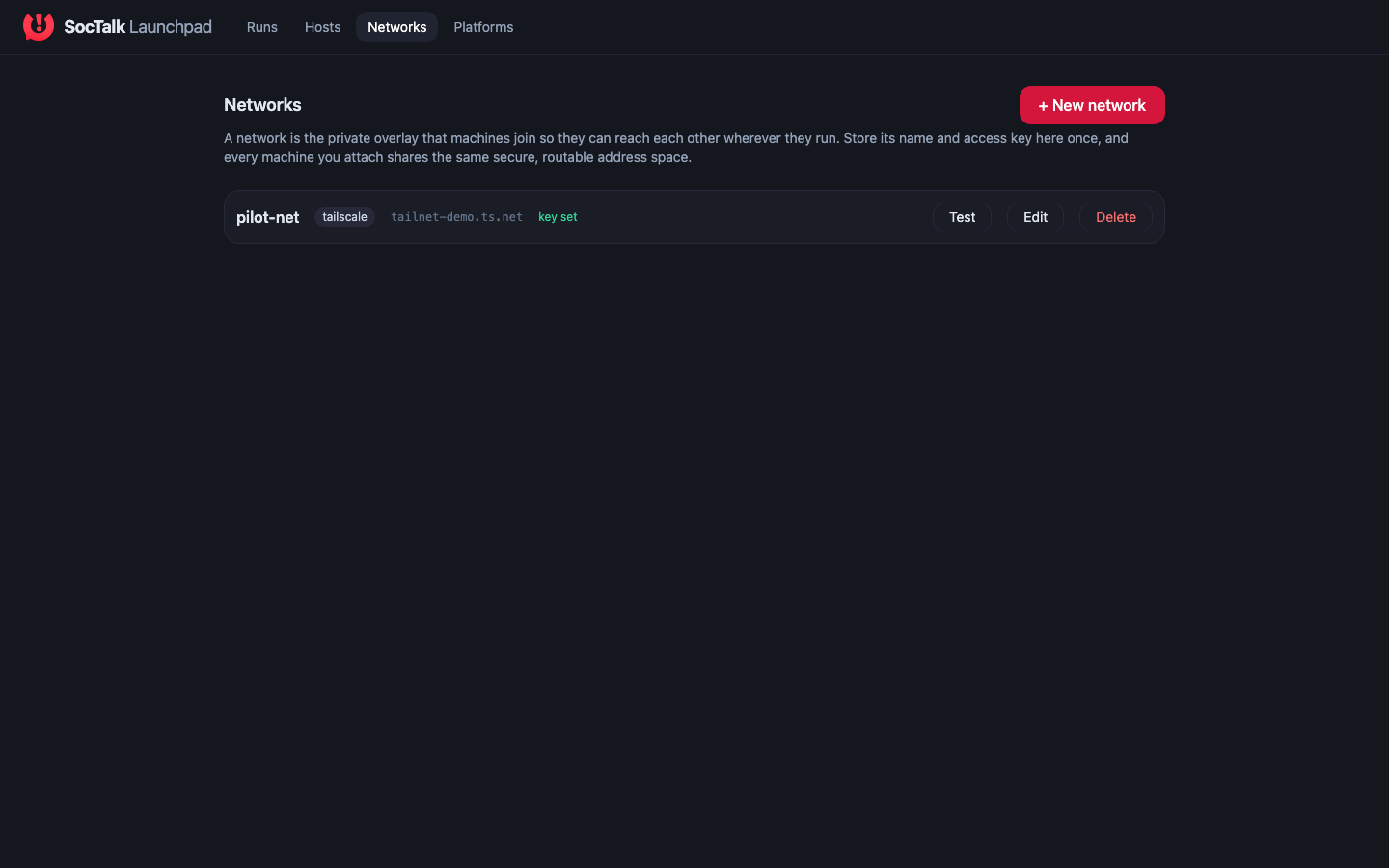
- Networks: add your tailnet: the overlay name (e.g.
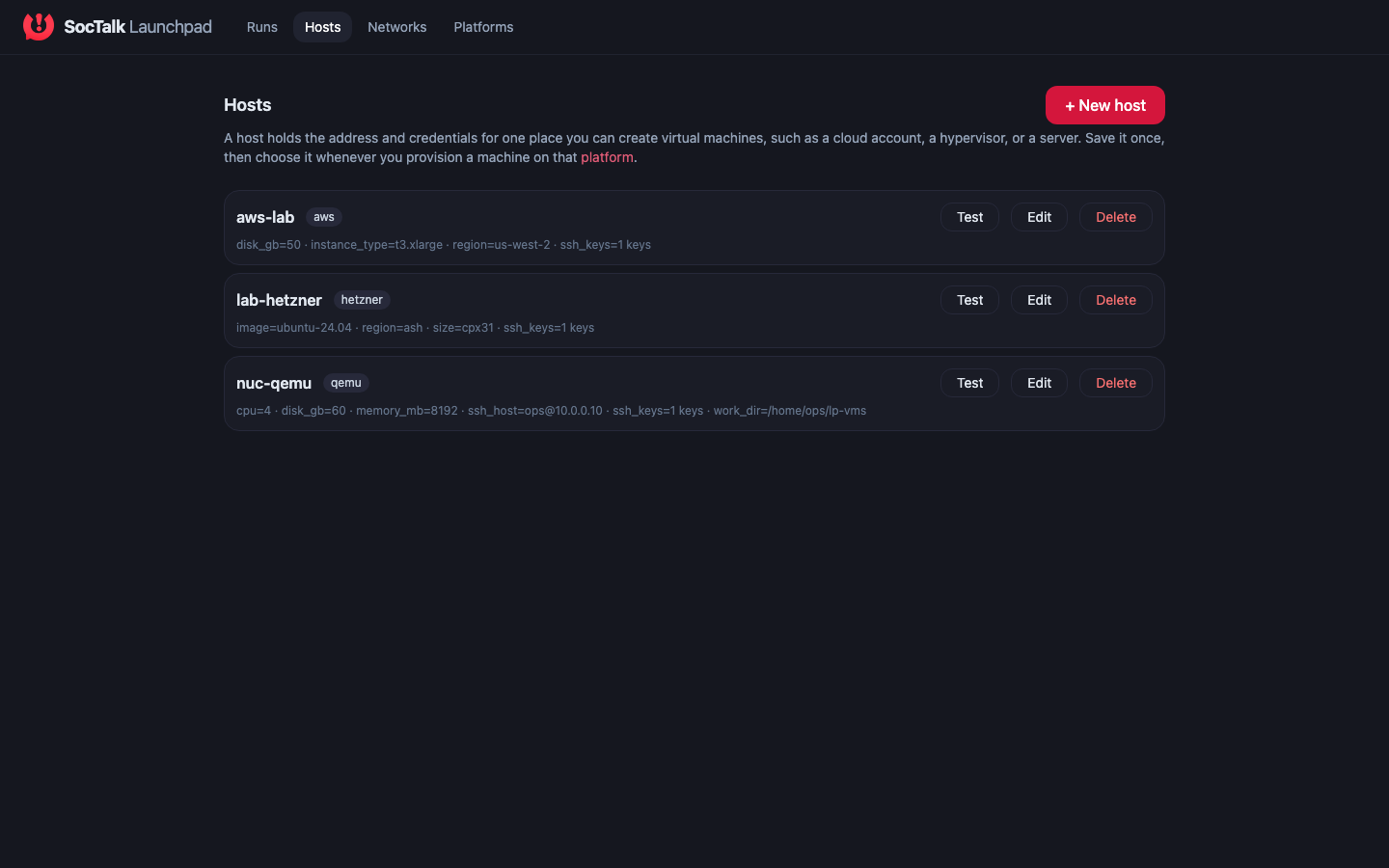
taila1b2c3.ts.net) and your Tailscale API key. Press Test to confirm the key works before you rely on it. A run binds to one network, and every machine joins it. - Hosts: add the place you'll provision on. For this guide that's your KVM box: the SSH target and a writable work dir. New hosts pre-fill the fields their platform expects, and Test validates the connection and credentials. Credentials are stored with the host and never leave the machine running Launchpad.
- Runs: create a run: assign the control node (your MSSP) and each tenant to a host, pick the network, fill in the MSSP admin creds and LLM key, and press Launch.
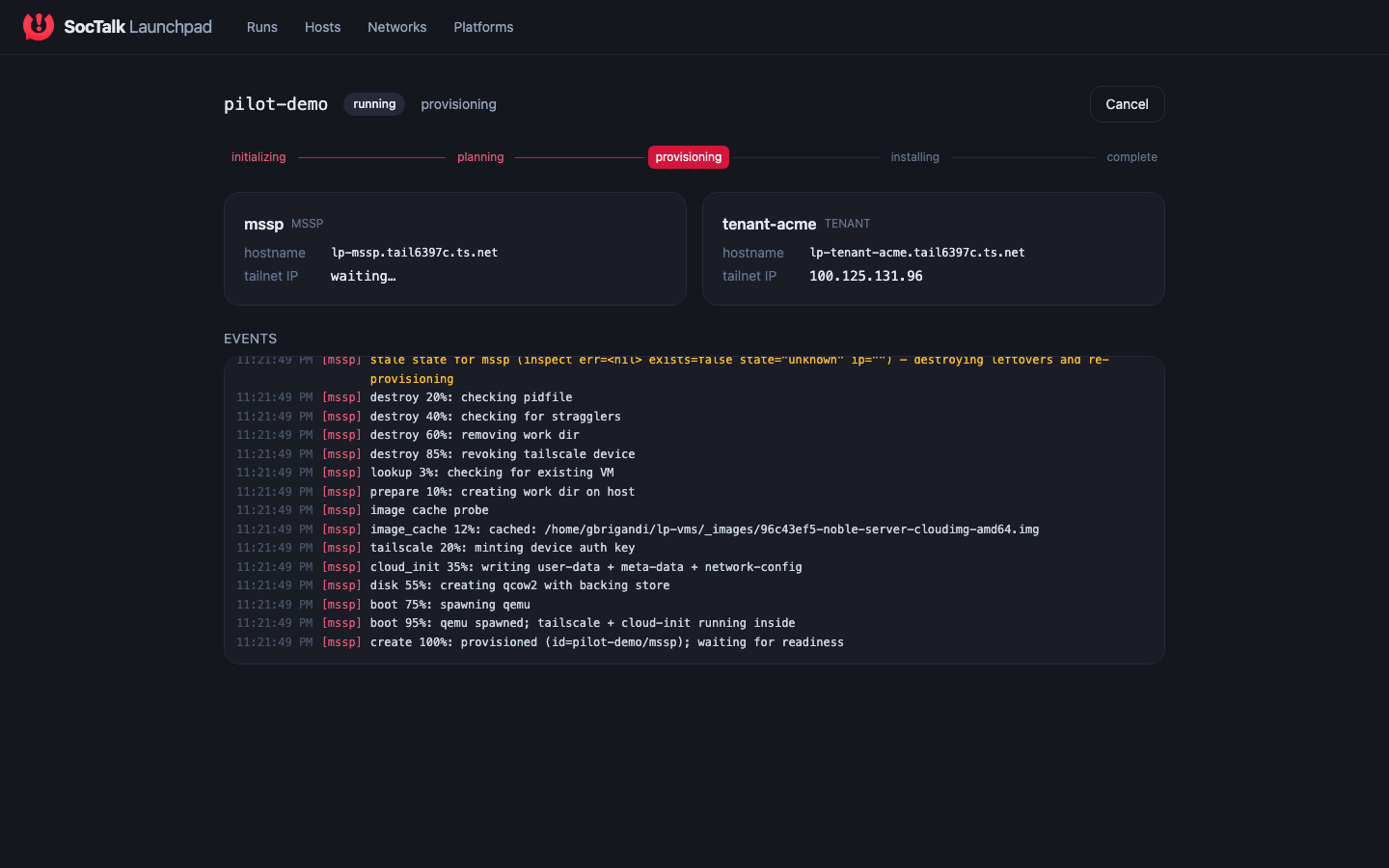
The console streams progress live, each VM provisioning, joining the tailnet, and installing SocTalk, and gives you the MSSP URL at the end. Runs are idempotent (re-launch reconciles against machines that already exist rather than duplicating them), and the Down action tears a run's machines back down.
Compliance check
Before pointing a plugin at real infrastructure you can sanity-check it from the CLI:
launchpad plugin verify qemuThis runs the protocol compliance suite (checksum, handshake, plan, idempotent destroy) without needing real credentials.
3. Verify it worked
When the run completes (the console marks it done, or launchpad up exits 0), sanity-check the two systems:
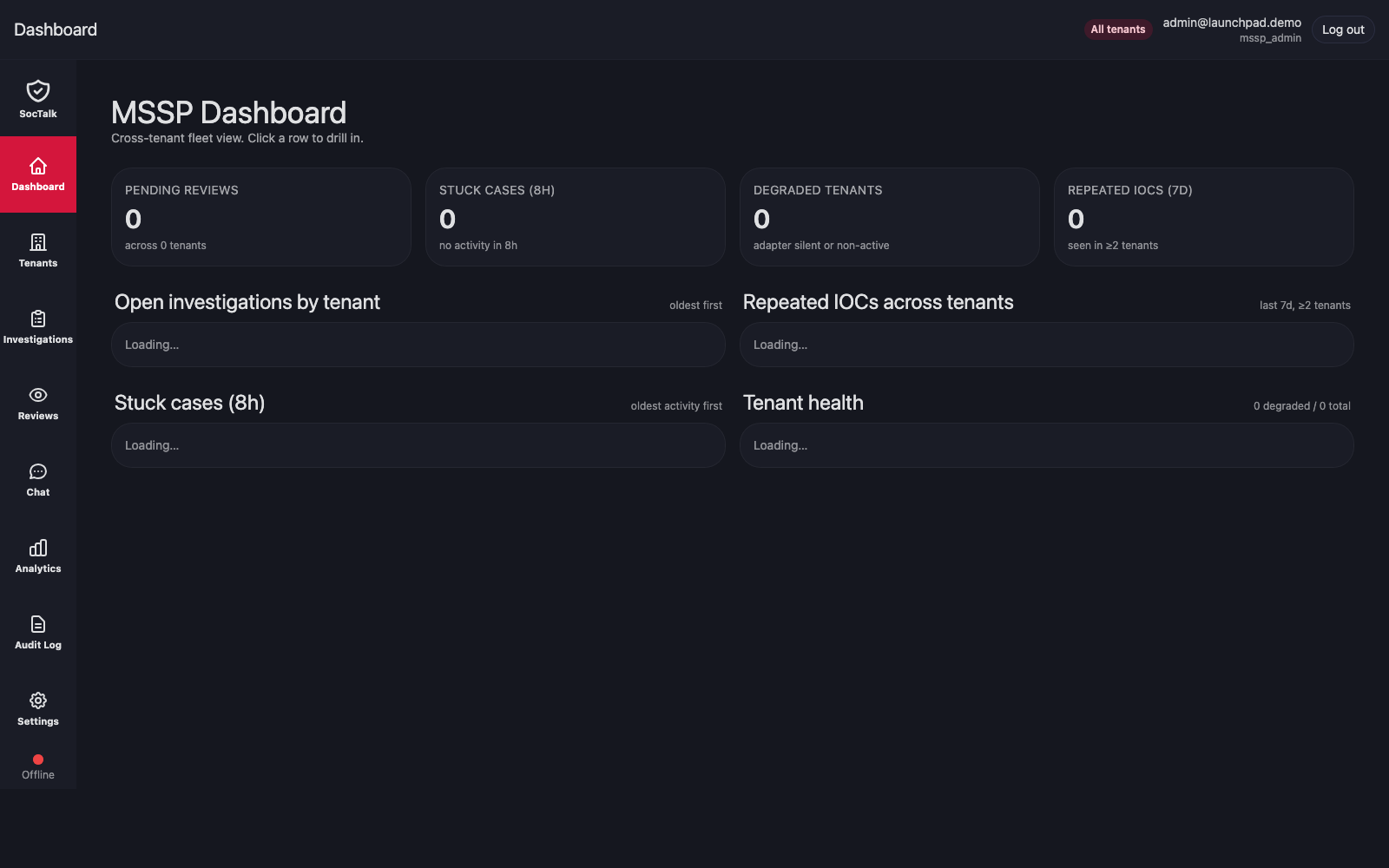
MSSP dashboard: open the URL the run printed at the end (or https://lp-mssp.<your-tailnet>.ts.net/). Sign in with the admin creds you set for the run. Your tenant should be listed and flip to Online within 1-2 minutes.
Wazuh on the tenant: SSH into the tenant VM (ssh ops@lp-tenant-acme.<your-tailnet>.ts.net) and check the pods:
sudo k3s kubectl -n tenant-acme get podsYou want to see:
NAME                                          READY   STATUS
tenant-acme-wazuh-manager-0                   1/1     Running
tenant-acme-wazuh-indexer-0                   1/1     Running
tenant-acme-wazuh-dashboard-<hash>            1/1     Running
tenant-acme-linuxep-0                         1/1     Running
soctalk-adapter-<hash>                        1/1     Running
soctalk-runs-worker-<hash>                    1/1     Running
The linuxep-0 StatefulSet is a demo Linux endpoint with the Wazuh agent installed, a place to simulate alerts. See Attack simulator for details.
SSH into the VMs
Every launchpad-provisioned VM has a preconfigured ops user with the SSH keys from your host config authorized and passwordless sudo. That's how the launchpad's install phase reaches in; you use the same account for troubleshooting.
# Interactive shell as ops
ssh ops@lp-mssp.<your-tailnet>.ts.net
ssh ops@lp-tenant-acme.<your-tailnet>.ts.net

# One-off command as root
ssh ops@lp-tenant-acme.<your-tailnet>.ts.net "sudo journalctl -u k3s -n 100"
Fallback: connect by IPv4 if MagicDNS is off
If MagicDNS is disabled on your tailnet, lp-<key>.<tailnet>.ts.net won't resolve on your workstation. Use tailscale status | grep lp- to find the tailnet IPv4 and ssh ops@100.x.y.z directly.
4. Use your pilot: onboard customers and ask the AI
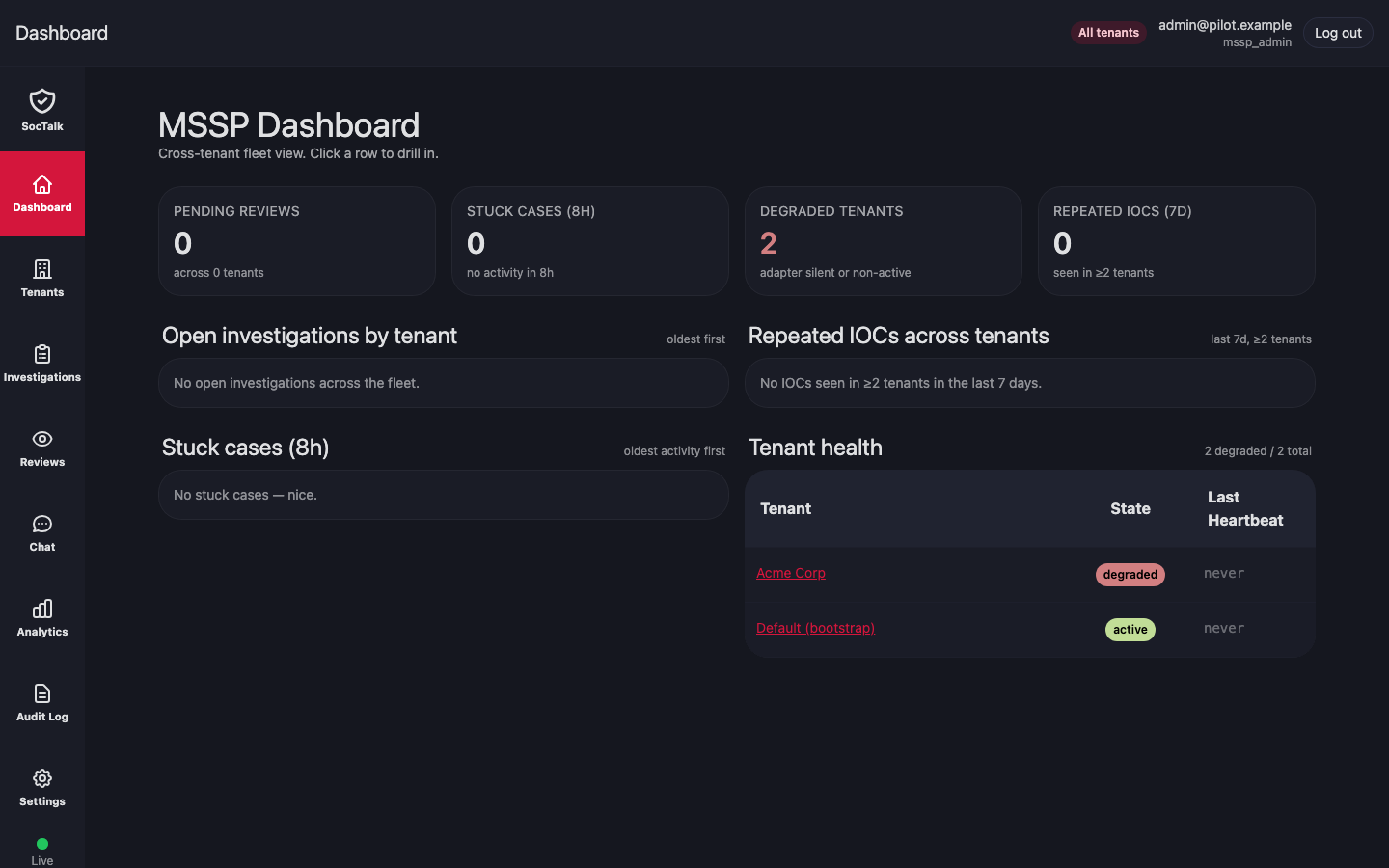
Launchpad hands you a working MSSP with your first tenant already onboarded; from here you drive it exactly like an MSSP would. The Dashboard is a cross-tenant fleet view: pending reviews, stuck cases, degraded tenants, and per-tenant health.
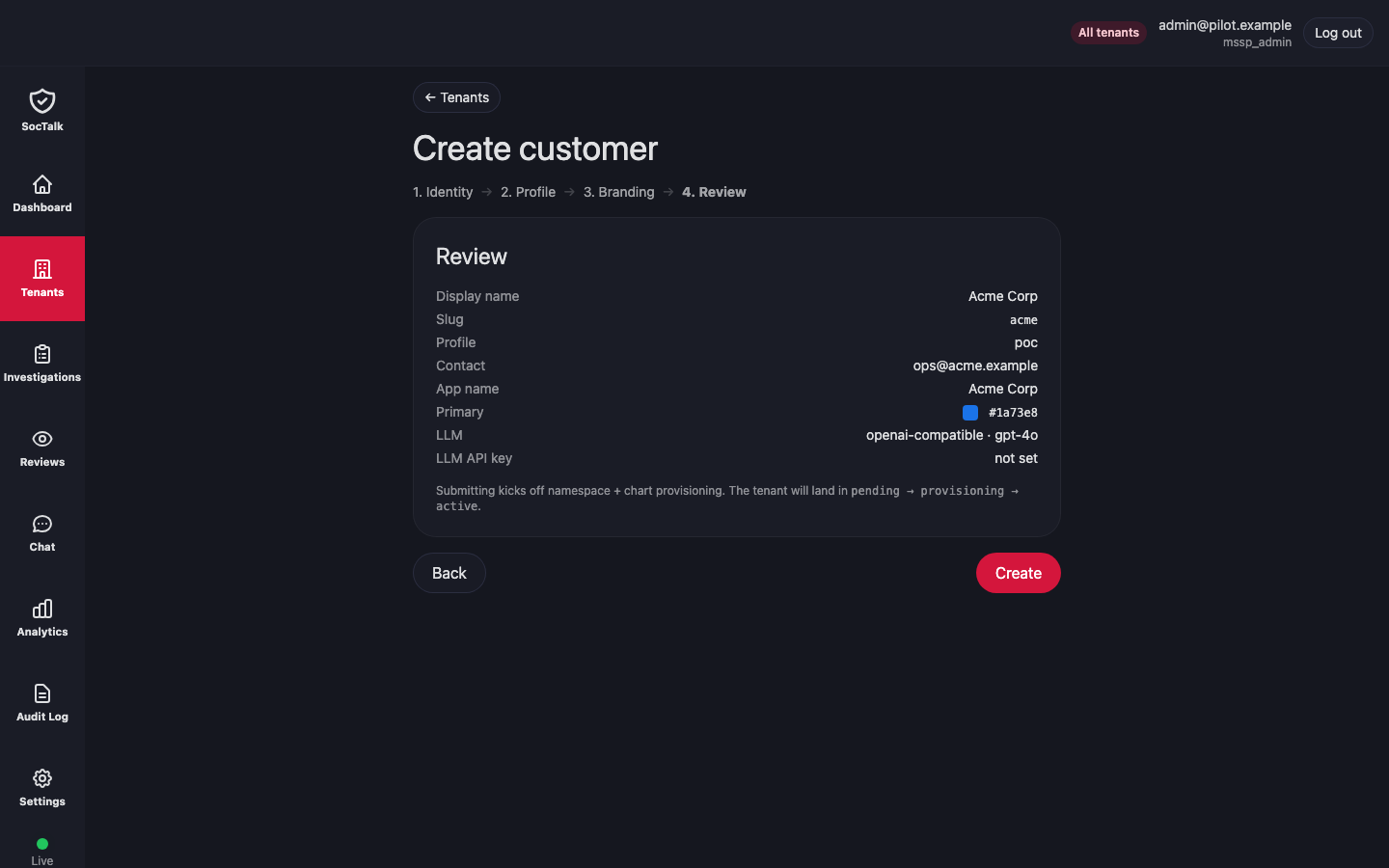
Onboard another customer. Tenants → Create customer runs a short four-step wizard:
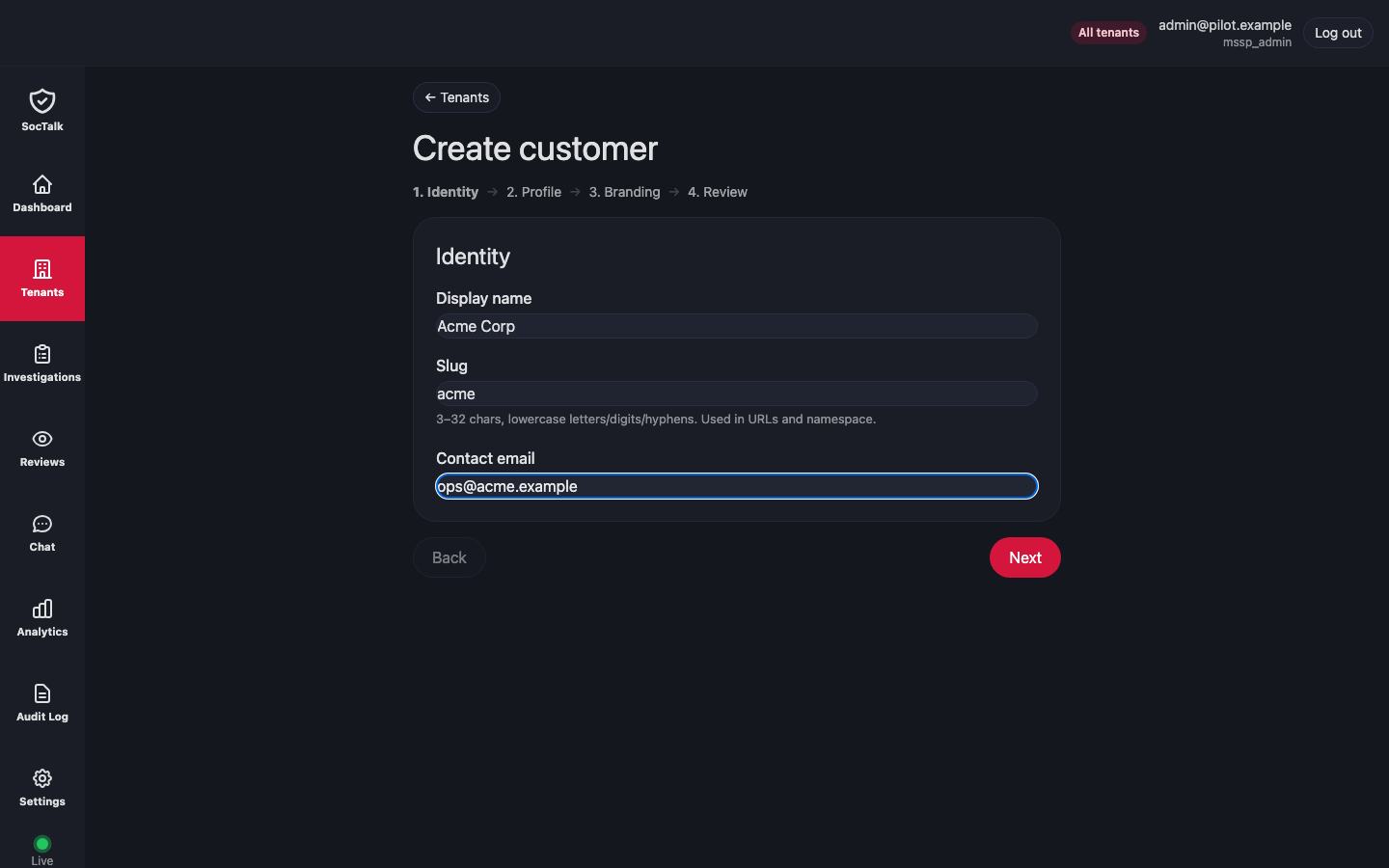
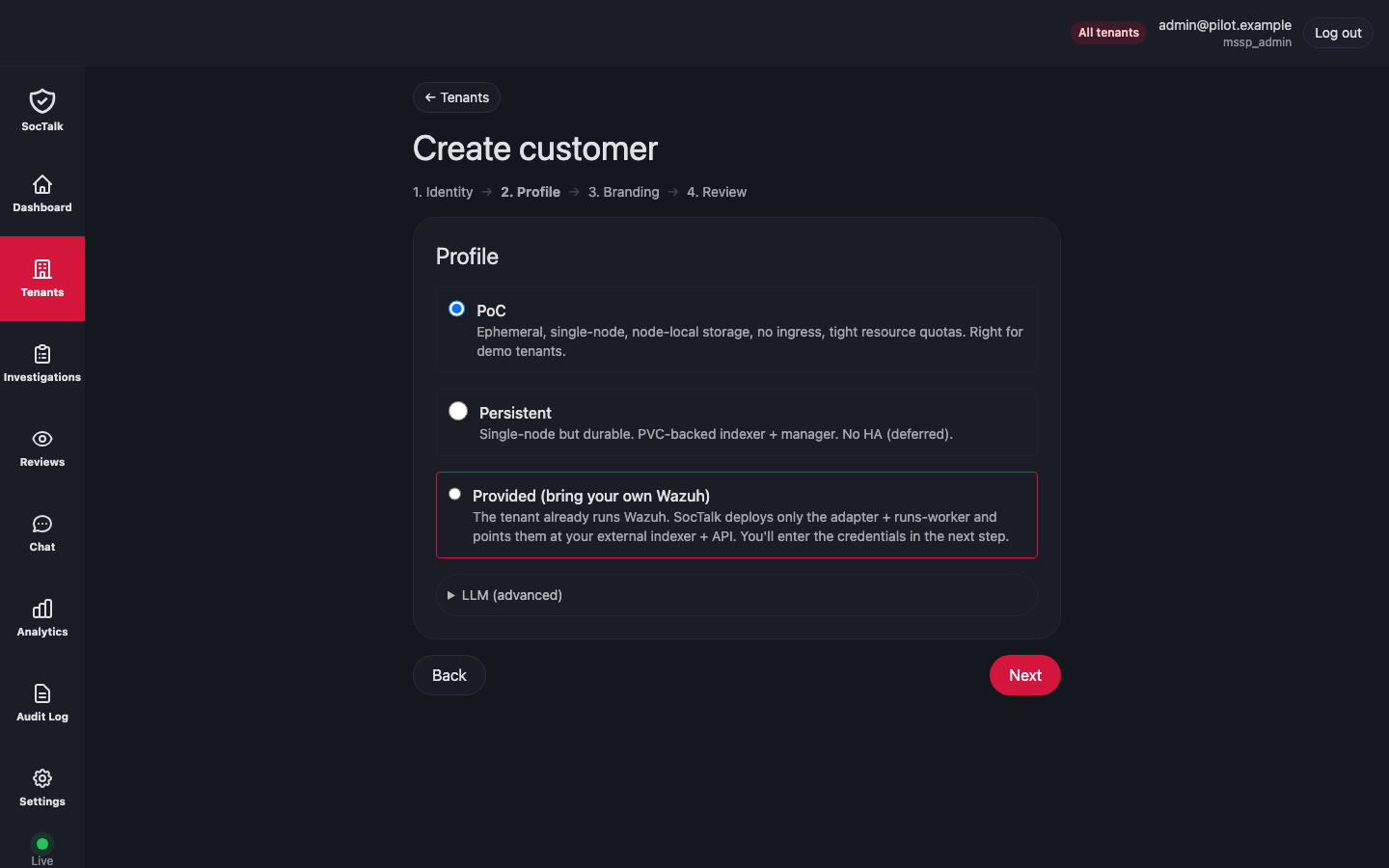
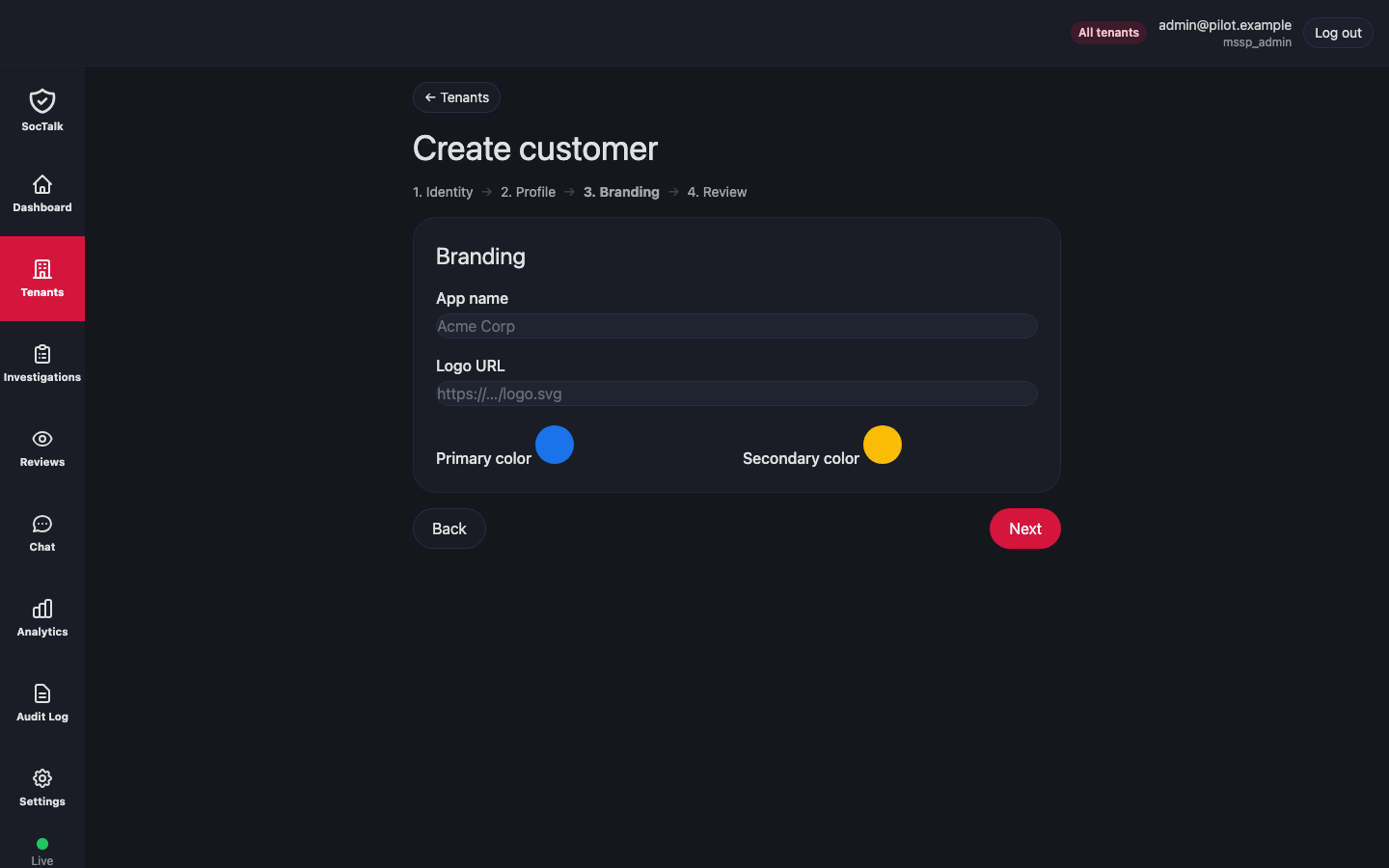
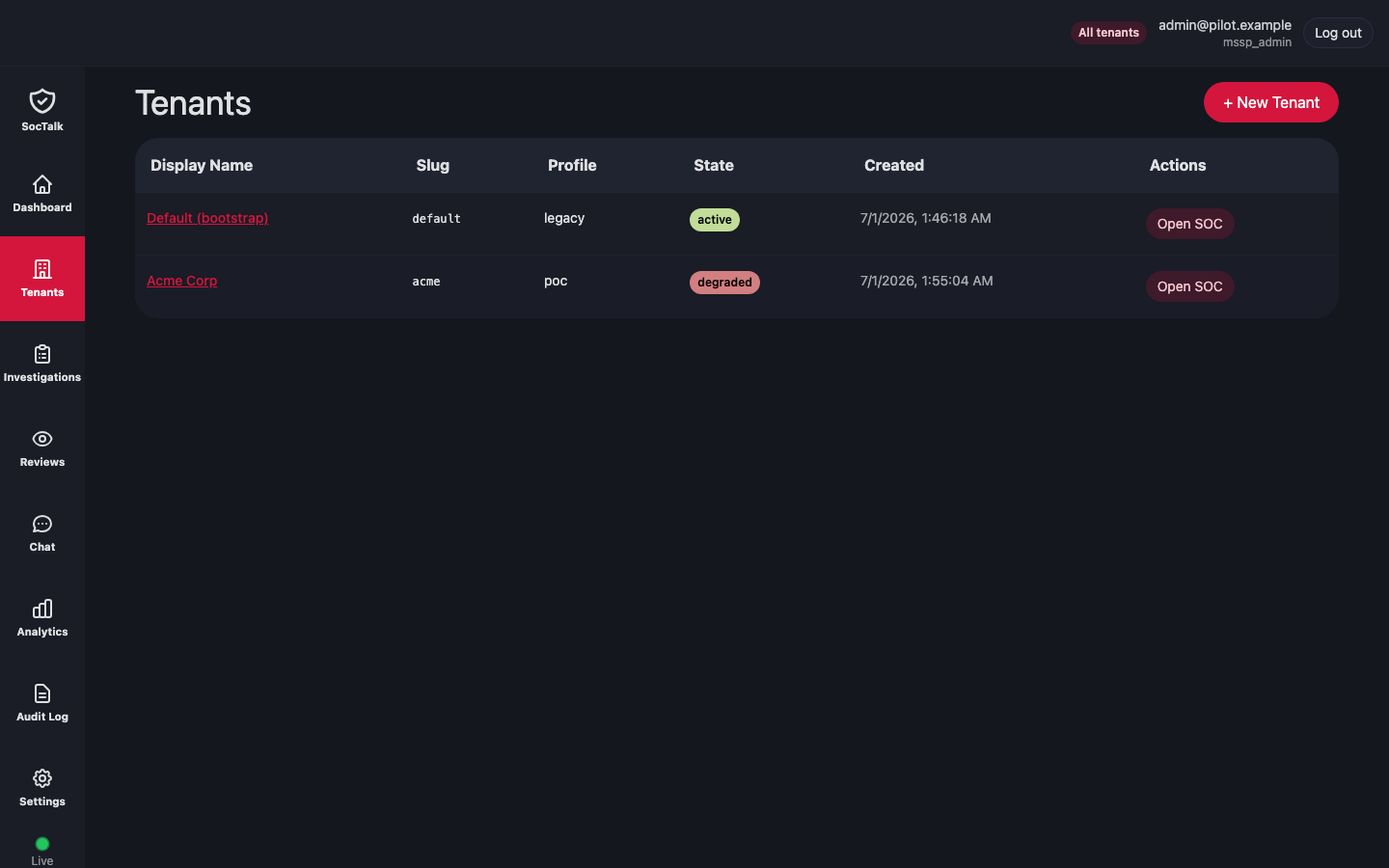
The new customer joins the fleet, and the cloud-agent provisions its Wazuh + adapter stack the same way Launchpad did for the first tenant:
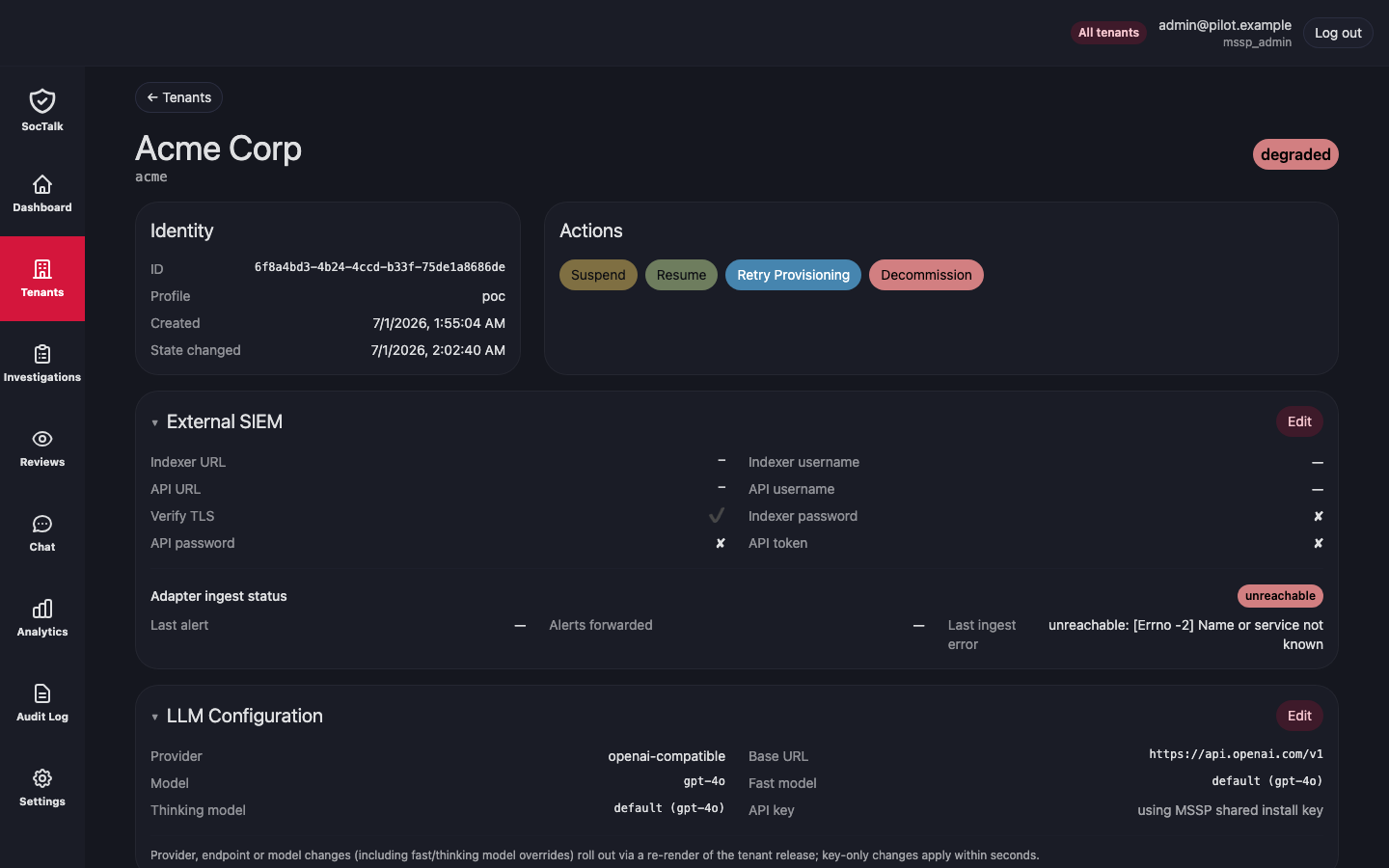
Drill into a tenant for its open investigations, reviews, and Wazuh health:
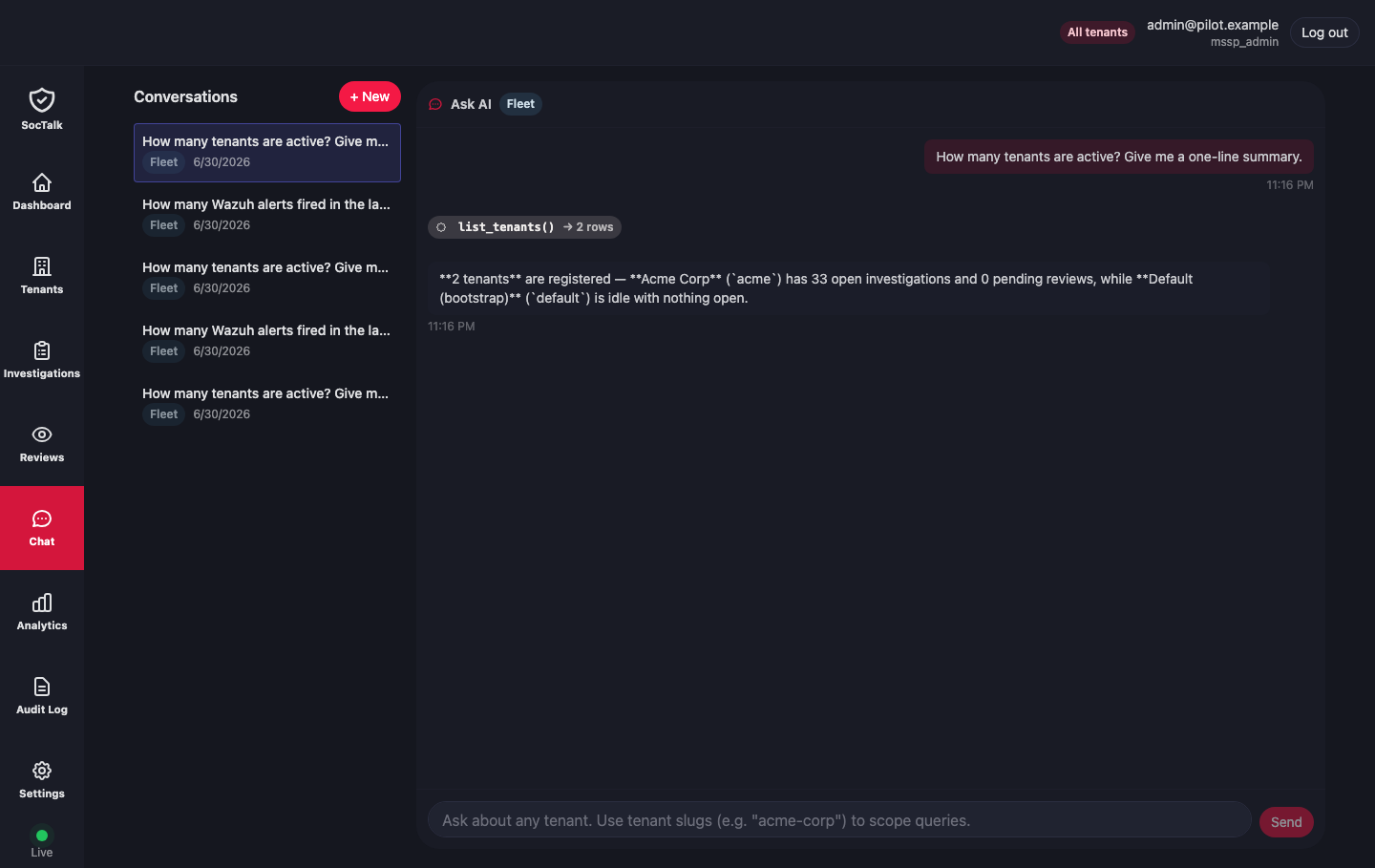
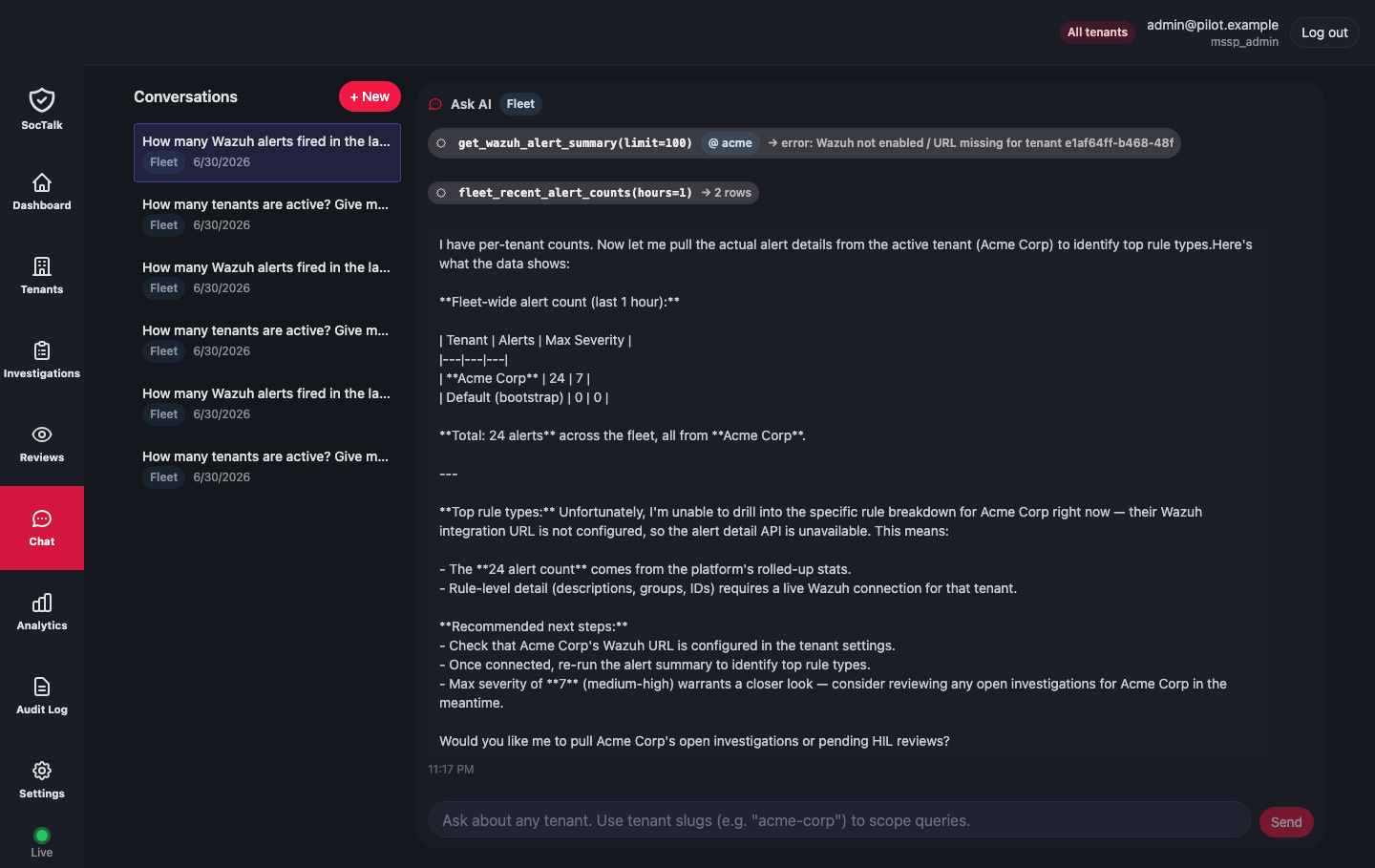
Ask the AI SOC analyst. The Chat view answers questions across the whole fleet or scoped to one tenant, calling tools against live data and summarizing what it finds:
TIP
The AI needs a real LLM provider configured; the smoke-test placeholder key won't answer questions.
5. Fine-tune with a config file
Once a pilot works from the console, you can capture the same setup as a YAML config and drive it headless with launchpad up: no console. Reach for this when you want:
- Repeatable, scripted runs: check the config into git, run it in CI, and assert on the JSON event stream.
- Fine control the form doesn't surface: pin a base image or its SHA, point at a specific
install.shrelease tag, script many tenants at once, or tune CPU / memory / disk per VM.
The console and the config share the same Hosts and Networks under ~/.launchpad, so a config run reuses exactly what you already tested.
Save this as pilot.yaml and replace the bracketed values:
run_id: my-pilot

# Provisioning target — the plugin that creates VMs. Others: vmware, hetzner, proxmox, docker.
target: qemu

# Passed opaquely to the qemu plugin's initialize.
plugin_config:
  ssh_host: [user]@[vm-host-ip]      # SSH target on your KVM host
  work_dir: /home/[user]/lp-vms       # writable path; caches images + hosts VM disks
  tailnet: [your-tailnet].ts.net
  cpu: 4
  memory_mb: 8192
  disk_gb: 60
  # base_image_url is optional; defaults to the current Ubuntu Noble cloud image.
  # base_image_sha256: <optional pin>

# SSH keys authorized on every provisioned VM (the launchpad SSHes in as `ops`).
ssh_keys:
  - "ssh-ed25519 AAAA... you@laptop"

mssp:
  key: mssp
  name: my-pilot-mssp
  role: mssp
  tags: { role: mssp }

tenants:
  - key: tenant-acme
    name: acme-corp
    role: tenant
    tenant_slug: acme
    tags: { role: tenant, tenant_slug: acme }

# Post-provision installation phase.
install:
  # Point at a pinned release tag for reproducible smoke tests. `main` also works.
  installer_url: https://raw.githubusercontent.com/soctalk/soctalk/main/install.sh
  mssp_admin_email: admin@my-pilot.demo
  mssp_admin_password: [pick-a-strong-one]
  mssp_display_name: My Pilot MSSP
  llm_provider: anthropic
  llm_api_key: [your-anthropic-key]
About the admin password
Save it in a password manager before you run. The launchpad won't print it back to you if you lose track.
To add tenants, extend the tenants: list. Each needs a unique key, a tenant_slug that matches your Tailscale ACL, and a matching entry under tagOwners.
Run it
export TAILSCALE_API_KEY=tskey-api-...

launchpad up --config pilot.yaml --state ~/.launchpad/state.json
The default renders a Bubble Tea TUI with per-VM progress bars, a live event log, and a gate prompt for interactive steps. For unattended runs (CI, scripts, this guide's smoke tests) use --headless to stream JSON events to stdout:
launchpad up --config pilot.yaml \
  --state ~/.launchpad/state.json \
  --headless --auto-resolve-gates | tee run.log
--auto-resolve-gates accepts every gate (currently just the Tailscale ACL confirmation) without prompting. Skip it if you want to review your ACL before tenants get provisioned.
Rough phase timing on a first run (fresh cache, decent home internet):
| Phase | Duration | What's happening |
|---|---|---|
provisioning | 60-90s | Image download (~600 MB) + cloud-init + Tailscale join |
installing (MSSP) | 3-5 min | k3s install, Helm, soctalk-system chart |
installing (per tenant) | 3-5 min | k3s + Helm + soctalk-cloud-agent, then MSSP dispatches the soctalk-tenant chart (Wazuh + adapter) |
| Total | ~10-15 min | for MSSP + 1 tenant |
Subsequent runs are much faster because the base image is cached on the VM host.
6. Iterate, resume, tear down, restart
The launchpad is idempotent. Re-launching a run (the console Launch again, or launchpad up) picks up where it left off:
- VMs that already exist are reused (no double-provisioning)
- The MSSP install step is skipped if the API is already answering
- Tenant onboarding is skipped if the tenant already exists
- The
soctalk-cloud-agentchart ishelm upgrade --installed, not reinstalled
To tear everything down cleanly (VMs, Tailscale devices, work dir), use the console Down action or:
launchpad down --config pilot.yaml --state ~/.launchpad/state.jsonTo add a tenant to a running pilot, add it in the console (or edit tenants: in pilot.yaml) and re-launch. Existing VMs are left alone; the new tenant is provisioned and installed.
7. Troubleshooting
vm.wait_ready times out
The VM booted but never joined the tailnet. Cloud-init on the VM couldn't reach the Tailscale coordination servers.
- Confirm your VM host has internet
- SSH into the VM host and inspect the QEMU serial log at
<work_dir>/<run_id>/<vm_key>/serial.log: it captures the cloud-init output including tailscale-up - Common cause: the ephemeral auth key was revoked before the VM used it (check the Tailscale admin → Machines log)
MSSP install times out on helm upgrade
The chart install ran but pods didn't converge in 15 minutes. Usually image pulls on slow connections.
- SSH into the MSSP VM:
sudo k3s kubectl -n soctalk-system get podsand check forImagePullBackOfforCrashLoopBackOff - If pods are still pulling, wait and re-launch; the second attempt skips the install step once the API is answering
Tenant agent logs no such host on /api/agent/register
The pod's cluster DNS can't resolve the MSSP's tailnet hostname. This is exactly what hostAliases is for. The launchpad splices this into the helm command by default; if you're doing it by hand, see the do-it-yourself pilot.
Automation
The --headless mode is the launchpad's automation surface. Every phase, VM state change, install log line, and gate prompt is one JSON event on stdout:
launchpad up --config pilot.yaml --headless --auto-resolve-gates | \
  jq -c 'select(.ev == "phase" or .ev == "error" or .ev == "complete")'
Assert on those events from your CI. See Launchpad event schema for the full list.
Where to next
- Add a real tenant. Onboard from the MSSP dashboard; see do-it-yourself pilot §3 for the wizard walkthrough.
- Generate some alerts. Attack simulator has the runbook.
- Point the AI at real data. Configure your LLM provider properly (the smoke-test placeholder key won't answer questions).
- Move to production. Install is the non-launchpad, HA-capable path.