
MSSP Pilot: Do It Yourself
Most pilots should use Launchpad
Launchpad automates this entire rollout, same install, same charts, same Tailscale flow, in a single command (~15-25 min, mostly waiting on downloads, vs ~2 hours by hand). Start there. Reach for this do-it-yourself guide when you want to understand every step, are troubleshooting a Launchpad run, or your environment can't run Launchpad, air-gapped, on-prem split-horizon DNS, an unsupported substrate, or an existing cluster.
A practical path for MSSPs evaluating SocTalk with 1-3 of their customers. Two on-premise environments (one MSSP control plane, one per tenant), connected by a firewall-friendly mesh VPN. End state: a working multi-tenant SocTalk install, the AI SOC analyst answering questions about each tenant's real Wazuh data, and a screenshot you can show your stakeholders.
Not a production install. No HA, no real TLS, your tailnet hostname stands in for ingress. When you're ready for production, see Install.
Trying SocTalk solo first? Start with Quickstart VM: single box, single tenant, ~10 minutes.
Hands-on time
| Side | Hands-on | Wall clock |
|---|---|---|
| MSSP (once) | ~45 min | ~60 min |
| Each tenant (1-3 of them) | ~30 min per tenant | ~45 min per tenant |
| Demo + verification | ~10 min | ~10 min |
What's in scope
- 1 MSSP control plane + 1-3 tenants
- Both environments on-premise, any hypervisor that runs Ubuntu 24.04 (vSphere / Proxmox / Hyper-V / KVM / VirtualBox / bare metal)
- Tailscale as the mesh VPN. Headscale, NetBird, or any WireGuard mesh works the same way; Tailscale is what the commands below assume syntactically.
- The MSSP's L1 SocTalk control plane + the L2 SocTalk cloud-agent on each tenant
- Wazuh already-installed OR chart-installed per tenant; both supported
0. Before you start
Gather these. You'll be asked for all of them across the next 90 minutes:
- [ ] Hypervisor + admin login for the MSSP side
- [ ] Hypervisor + admin login per tenant (one per pilot customer)
- [ ] A Tailscale account (sign up; free tier handles a pilot fine)
- [ ] An LLM API key (Anthropic or OpenAI). For an air-gapped or sovereignty-sensitive option, see Ollama integration.
- [ ] One contact per tenant (name, email, has-existing-Wazuh? yes/no)
- [ ] If a tenant has existing Wazuh: two sets of credentials, one for the Wazuh Indexer (
:9200, Basic auth) and one for the Wazuh Manager API (:55000, JWT-mintable user)
1. Set up the tailnet
The MSSP control plane and every tenant join the same tailnet. The tailnet supplies stable hostnames (so the cloud-agent dials a name, not an IP) and ACLs (so tenants can't reach each other).
1.1 Tags
Define one tag for the MSSP and one per tenant in the Tailscale admin UI under Access Controls → Tags:
"tagOwners": {
  "tag:mssp":         ["autogroup:admin"],
  "tag:tenant-acme":  ["autogroup:admin"],
  "tag:tenant-globex":["autogroup:admin"]
}
Add one tag per pilot tenant. Tags are how the ACL keeps tenants from reaching each other.
1.2 ACL
Paste this stanza into Access Controls → Access Controls (JSON). Adjust the tenant tag list to match your pilot.
"acls": [
  {
    "action": "accept",
    "src":    ["autogroup:admin"],
    "dst":    ["tag:mssp:443", "tag:mssp:80"]
  },
  {
    "action": "accept",
    "src":    ["tag:mssp"],
    "dst":    ["tag:tenant-acme:*", "tag:tenant-globex:*"]
  },
  {
    "action": "accept",
    "src":    ["tag:tenant-acme", "tag:tenant-globex"],
    "dst":    ["tag:mssp:443", "tag:mssp:80"]
  }
]
The first rule lets your operator devices (your laptop, any admin-owned untagged node on the tailnet) reach the MSSP UI. Without it, Tailscale's default-deny blocks your own browser. The second rule lets the MSSP reach each tenant for chat tool calls (Wazuh API, observability). The third lets each tenant's cloud-agent reach the MSSP HTTPS endpoint to register and stream events. Tenants cannot reach each other.
Verify in the ACL Preview pane before saving. Confirm tag:tenant-acme cannot reach tag:tenant-globex on any port.
1.3 Auth keys
Under Settings → Keys, generate:
- One reusable auth key tagged
tag:msspfor the MSSP control plane. - One ephemeral auth key per tenant tagged
tag:tenant-<slug>. Set TTL to your pilot length (e.g. 90 days).
Note these somewhere safe; you'll paste them when each VM joins the tailnet.
1.4 Network requirements
Tailscale needs egress only (never inbound) from each node:
- Direct path (when both peers can NAT-traverse): WireGuard over UDP on a random high port. Most networks already permit this.
- DERP fallback (when NAT traversal fails, e.g. strict firewalls or double-NAT): TCP/443 to Tailscale's DERP relays. Most pilots use this path since it looks like normal HTTPS traffic.
If your firewall allows outbound HTTPS, you're fine. No inbound rule changes anywhere.
2. MSSP side: stand up the control plane
The MSSP control plane is a single SocTalk VM, the same one Quickstart VM installs. We use that tutorial as the base and add tailnet-joining.
2.1 Provision and install
Follow Quickstart VM steps 1 through 5 (download, boot, get the setup token, open the wizard, sign in). When the wizard asks for Hostname, leave it blank for now. You'll set it to the tailnet hostname in §2.3.
Stop when you've reached the MSSP dashboard. Note: the Quickstart flow auto-onboards a tenant named demo on first boot. You'll see one tenant already in your list; that's expected. You can either leave it (and ignore it in §5) or decommission it from the dashboard before adding your real pilot tenants:
Tenants → demo → DecommissionEither is fine; just be aware so you're not confused when list all tenants in §5 returns more than your pilot count.
2.2 Harden the box
Required before the next step
The downloadable disk images ship with a build-time ubuntu:packer SSH user. Do not connect the VM to your tailnet until you've locked it down. See SSH access + credentials for the full story and the hardening commands.
Minimum:
sudo passwd -l ubuntu
sudo sed -i 's/^#\?PasswordAuthentication.*/PasswordAuthentication no/' \
  /etc/ssh/sshd_config /etc/ssh/sshd_config.d/*.conf 2>/dev/null
sudo systemctl reload ssh
2.3 Install Tailscale, join the tailnet
SSH in as ops (the user the cloud-init seed created during your Quickstart VM install; not the build-time ubuntu user that §2.2 just locked):
curl -fsSL https://tailscale.com/install.sh | sh
sudo tailscale up --auth-key=tskey-auth-mssp-... --advertise-tags=tag:mssp --hostname=soctalk-mssp
Confirm the assigned tailnet hostname:
tailscale status | head -1
# example: 100.64.10.5   soctalk-mssp        ops          linux   active; direct
Your MSSP hostname is soctalk-mssp.<your-tailnet>.ts.net. Note it; everything that follows uses it.
2.4 Bind SocTalk's ingress to the tailnet hostname
Edit the deployed values to set the hostname:
sudo nano /etc/soctalk/values.yamlChange ingress.hostnames.mssp and ingress.hostnames.customer to your tailnet hostname (e.g. soctalk-mssp.taila1b2c3.ts.net), then redeploy:
sudo helm upgrade soctalk-system /opt/soctalk/charts/soctalk-system \
  -n soctalk-system -f /etc/soctalk/values.yaml
Field reference for values.yaml: see Setup wizard; the wizard writes the same file.
2.5 Verify
From any other tailnet device (your operator laptop works; the §1.2 ACL allows autogroup:admin → tag:mssp:443):
curl -k https://soctalk-mssp.<your-tailnet>.ts.net/health/ready
# expected: 200 OK
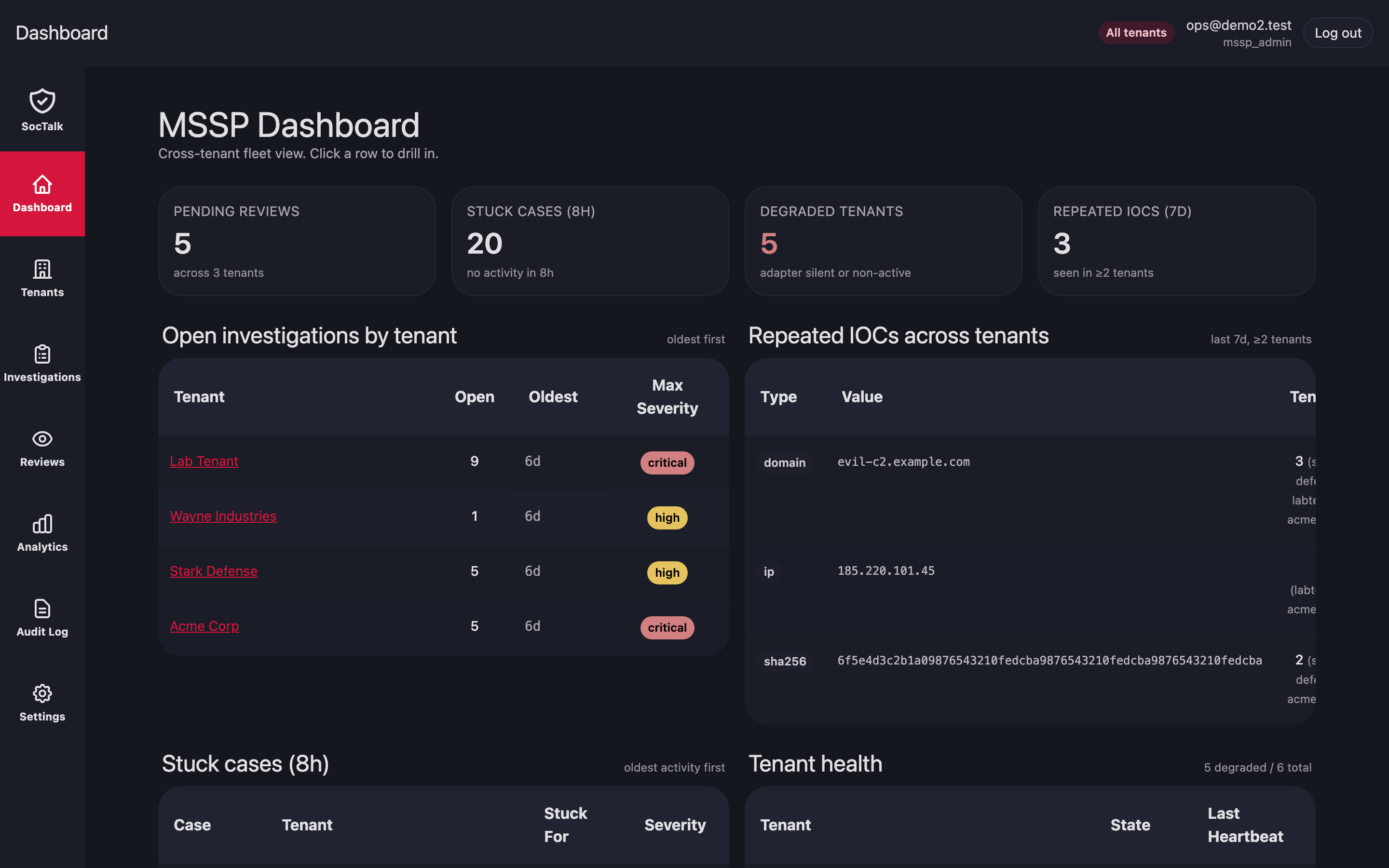
Sign in to the dashboard at https://soctalk-mssp.<your-tailnet>.ts.net/ with the admin credentials from §2.1. You should land on the MSSP cross-tenant fleet view: the KPI strip across the top (Pending Reviews / Stuck Cases / Degraded Tenants / Repeated IOCs), the per-tenant investigation queue, and the tenant health table.
3. Onboard each tenant: issue the agent registration
For each tenant in your pilot, you'll do this in the MSSP dashboard, then hand the result to the tenant operator.
3.1 Run the Create Customer wizard
In the MSSP dashboard, click Tenants in the left rail, then New tenant. This opens the Create Customer wizard. The full step-by-step (Identity, Profile, the provided-only External SIEM step, Branding, Review) is documented once in Onboard a tenant. This section covers only what is specific to the tailnet pilot.
Slug must match your tailnet tag
On the Identity step, set the Slug to match your tailnet tag from §1.1 (so tag:tenant-acme → slug acme). Later steps substitute the slug directly into tag:tenant-<slug> for the auth key (§3.3) and the tenant tailscale up command (§4.2 / §4.7a); a mismatch means the tenant node advertises a tag your §1.2 ACLs don't grant.
Collect provided creds up front
For a provided-profile tenant, the wizard's External SIEM step needs the tenant's existing Wazuh credentials, and those endpoints must be reachable from the tenant VM you stand up in §4. Gather them from your tenant contact out-of-band first; see §3.4.
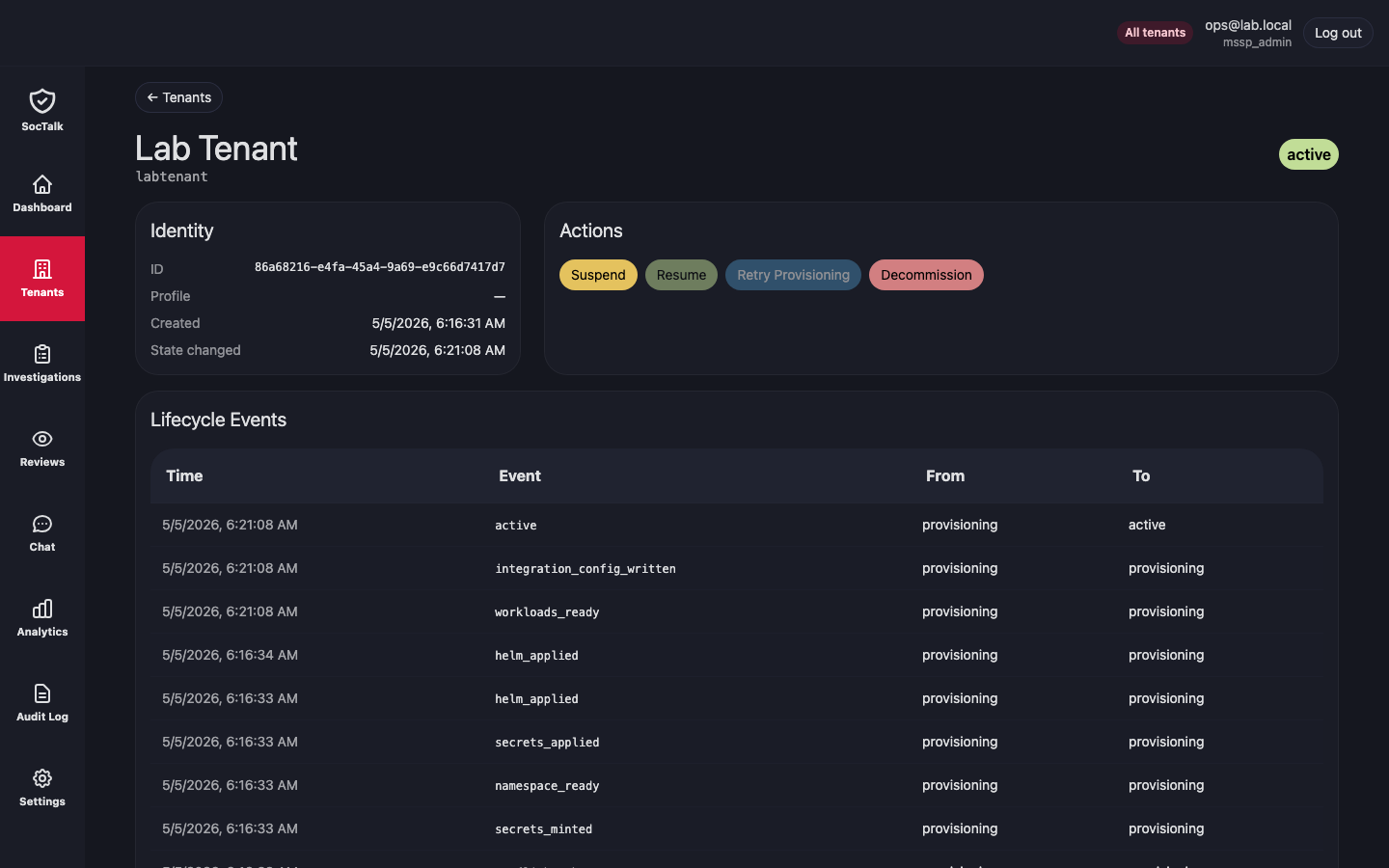
When the wizard finishes, the tenant starts in pending and runs through provisioning → active; watch the lifecycle events accumulate on the tenant detail page.
3.2 Issue the agent registration command
No UI button (yet)
At the time of writing, the tenant detail page exposes only the lifecycle actions (Suspend / Resume / Retry Provisioning / Decommission). The :issue-agent flow is API-only; drive it from a shell on the MSSP VM. A dedicated Issue Agent button is on the roadmap.
From the MSSP VM, sign in once to obtain a session cookie, then POST against the tenant's :issue-agent endpoint:
# Replace <mssp-host> with your MSSP UI hostname (e.g. soctalk-mssp.<tailnet>.ts.net)
# Replace <tenant-id> with the UUID from the tenant detail URL or from GET /api/mssp/tenants
MSSP=https://<mssp-host>
TENANT=<tenant-id>

curl -sk -c jar -X POST "$MSSP/api/auth/login" \
  -H 'Content-Type: application/json' \
  -d '{"email":"<mssp-admin-email>","password":"<password>"}'

curl -sk -b jar -X POST "$MSSP/api/mssp/tenants/$TENANT:issue-agent" \
  -H "Origin: $MSSP" \
  -H 'Content-Type: application/json' | jq .
The 201 response body contains a helm_install_hint you paste directly into the tenant's shell. It looks like:
helm install soctalk-agent-acme \
  oci://ghcr.io/soctalk/charts/soctalk-cloud-agent \
  --version 0.1.x \
  --namespace soctalk-agent --create-namespace \
  --set-string controlPlaneUrl=https://soctalk-mssp.<tailnet>.ts.net \
  --set-string bootstrapToken=<one-time-token>
Use the API output verbatim
The 0.1.x chart version and bootstrap token above are illustrative; the real values come from your :issue-agent response. Don't retype the helm command; copy the helm_install_hint field.
Bootstrap token TTL
The bootstrap token expires (default: 24h). If the tenant doesn't run the command before then, re-issue against the same :issue-agent endpoint. Re-issuing revokes any un-consumed prior token.
3.3 Hand off to the tenant contact
The tenant operator needs two things:
- The helm command from §3.2 (above). Copy as one block.
- The tenant-tagged Tailscale auth key you generated in §1.3.
Send these through a shared password manager (1Password, Bitwarden, Vaultwarden, anywhere with end-to-end encryption). Don't paste either into a public Slack channel or email them unencrypted.
Coming soon
The SocTalk Launchpad (in design) will generate a single signed bundle the tenant pastes into their setup wizard, automating this handoff. For now it's a manual copy-paste.
3.4 Coordinating External Wazuh creds for provided tenants
Skip this section if you picked poc or persistent in §3.1
Those profiles are self-contained: the chart installs its own Wazuh; nothing else to do on the MSSP side. Jump to §4.
For provided-profile tenants the wizard already collected the External SIEM credentials at §3.1 step 3, so by the time the tenant reaches active the adapter is configured. The only out-of-band work is upstream of §3.1: getting the credentials from the tenant in the first place.
Sequence:
- Before §3.1, ask your tenant contact for:
- Wazuh Indexer URL + user + password (Basic auth used by the adapter for
_search) - Wazuh Manager API URL + user + password (used to mint JWTs)
- A reachability decision: is their Wazuh on the same tailnet as the tenant VM you'll stand up in §4? If not, they'll need to
--advertise-routesfrom §4.2 (see §4.7a for the menu).
- Wazuh Indexer URL + user + password (Basic auth used by the adapter for
- They follow §4.7a on their side to confirm reachability.
- They send both endpoint + credential pairs to you (shared password manager).
- You run §3.1 with Provided at step 2 and paste the creds at step 3.
If the tenant's reachability story changes after §3.1 (e.g., they shift Wazuh to a different host), update the External SIEM panel on the tenant detail page. The controller picks up the change in the next reconcile (~30 s).
4. Tenant side: stand up the data plane
This section is self-contained for tenant IT contacts. If you're a tenant operator and your MSSP sent you a helm command + a Tailscale auth key, you can start here. Skim §0 for context, then follow this section.
4.1 Provision a Linux VM
You'll need an Ubuntu 24.04 LTS VM, 4 vCPU / 8 GB RAM / 60 GB disk minimum, with outbound internet. Provision it through your normal IT process. Any hypervisor that runs Ubuntu works (vSphere, Proxmox, Hyper-V, KVM, VirtualBox, bare metal). If you'd rather use a pre-baked SocTalk image, see Quickstart VM step 1 for the disk-image links and per-hypervisor import steps; come back here at §4.2.
4.2 Harden the box
WARNING
If you used the pre-baked SocTalk image, follow SSH access + credentials before connecting to your tailnet. If you provisioned a generic Ubuntu VM through your IT pipeline, your standard OS hardening already applies.
4.3 Install Tailscale, join the tailnet
curl -fsSL https://tailscale.com/install.sh | sh
sudo tailscale up --auth-key=tskey-auth-tenant-... --advertise-tags=tag:tenant-<slug> --hostname=soctalk-tenant-<slug>
Use the auth key from your MSSP's handoff (§3.3). Verify:
tailscale ping soctalk-mssp.<tailnet>.ts.net
# expected: pong from the MSSP control plane
If ping fails, check the Tailscale admin UI's machine list. Make sure the MSSP machine is online and the ACL preview shows your tenant tag can reach tag:mssp.
4.4 Install k3s + Helm
curl -sfL https://get.k3s.io | INSTALL_K3S_EXEC="--write-kubeconfig-mode=644" sh -
curl https://raw.githubusercontent.com/helm/helm/main/scripts/get-helm-3 | bash
export KUBECONFIG=/etc/rancher/k3s/k3s.yaml
Verify k3s came up:
kubectl get nodes
# expected: one node, status Ready
4.5 Disable tenant-side NetworkPolicies
Required before the next step
The soctalk-cloud-agent chart and the tenant chart ship with NetworkPolicies that assume Cilium FQDN policies. Vanilla k3s doesn't have Cilium CRDs, so the policies block legitimate egress from the agent to the MSSP. Disable the chart's NetworkPolicies before the helm install in §4.6.
The simplest path: add --set networkPolicies.enabled=false to your helm command.
If your tenant cluster needs network isolation, layer it at the host firewall (the tailnet ACL from §1.2 already provides MSSP↔tenant isolation).
4.6 Run the helm command from your MSSP
Paste the command from §3.2, appending --set networkPolicies.enabled=false per §4.5:
helm install soctalk-agent-<slug> \
  oci://ghcr.io/soctalk/charts/soctalk-cloud-agent \
  --version 0.1.x \
  --namespace soctalk-agent --create-namespace \
  --set-string controlPlaneUrl=https://soctalk-mssp.<tailnet>.ts.net \
  --set-string bootstrapToken=<one-time-token> \
  --set networkPolicies.enabled=false
Self-signed MSSP cert? Set insecureTLS
If your MSSP install hasn't provisioned a real TLS cert for the tailnet hostname yet (chart-side cert-manager not wired, or you're behind Tailscale and treating it as the trust boundary), append --set insecureTLS=true to the helm command. The agent will skip cert verification on controlPlaneUrl; Tailscale handles transport encryption anyway. Off by default; only set this when you trust the underlying network.
The cloud-agent installs in soctalk-agent namespace, dials the control plane via the tailnet, registers, and from there the MSSP controller drives the tenant chart install on this same cluster.
Watch the agent come up:
kubectl -n soctalk-agent logs deploy/soctalk-cloud-agent -f
# look for: agent_registered installation_id=...
When agent_registered lands in the logs, the agent has talked to the MSSP successfully.
4.7 Wazuh: existing or fresh?
Required: TWO endpoint + credential pairs.

1. Wazuh Indexer, typically https://<host>:9200
   - User + password with read access to wazuh-alerts-*
2. Wazuh Manager API, typically https://<host>:55000
   - User + password with permission to mint JWTs

Both must be reachable from this tenant VM. The Manager API must ALSO
be reachable from the MSSP via the tailnet; the L1 chat agent dials
it directly when answering questions about your alerts.

If your existing Wazuh runs on a SEPARATE host from this tenant VM
(common), pick one of these:

a) Install Tailscale on the Wazuh host too, join the same tailnet
   tagged tag:tenant-<slug>. Simplest; gives the MSSP a stable
   tailnet hostname to dial.

b) Advertise the Wazuh subnet from this tenant VM. On this VM:

     sudo tailscale up --auth-key=... --advertise-tags=tag:tenant-<slug> \
       --hostname=soctalk-tenant-<slug> \
       --advertise-routes=<wazuh-subnet>/<mask>

   Then approve the route in the Tailscale admin UI under
   Machines → this host → Edit route settings.

Without (a) or (b), the MSSP can reach this VM but cannot reach
your Wazuh Manager, and chat tool calls against your tenant will
fail.

Hand both endpoint + credential pairs (plus the chosen reachability
option) back to your MSSP. They paste the credentials at step 3 of
the Create Customer wizard (§3.1), which configures the SocTalk
tenant chart to use your Wazuh in "provided" mode. If the MSSP has
already onboarded you as `provided` and your reachability story
changes later, they update the External SIEM panel on the tenant
detail page instead (§3.4).The SocTalk tenant chart installs Wazuh + one linux-ep agent
simulator automatically (the `poc` profile). No tenant action needed
beyond waiting ~5 minutes for the Wazuh stack to come up.
Watch progress:
kubectl -n tenant-<slug> get pods -w4.8 Checkpoints: two states to watch
The tenant goes through two distinct readiness states. Don't confuse them:
4.8a Cloud agent registered (~1 minute after §4.6)
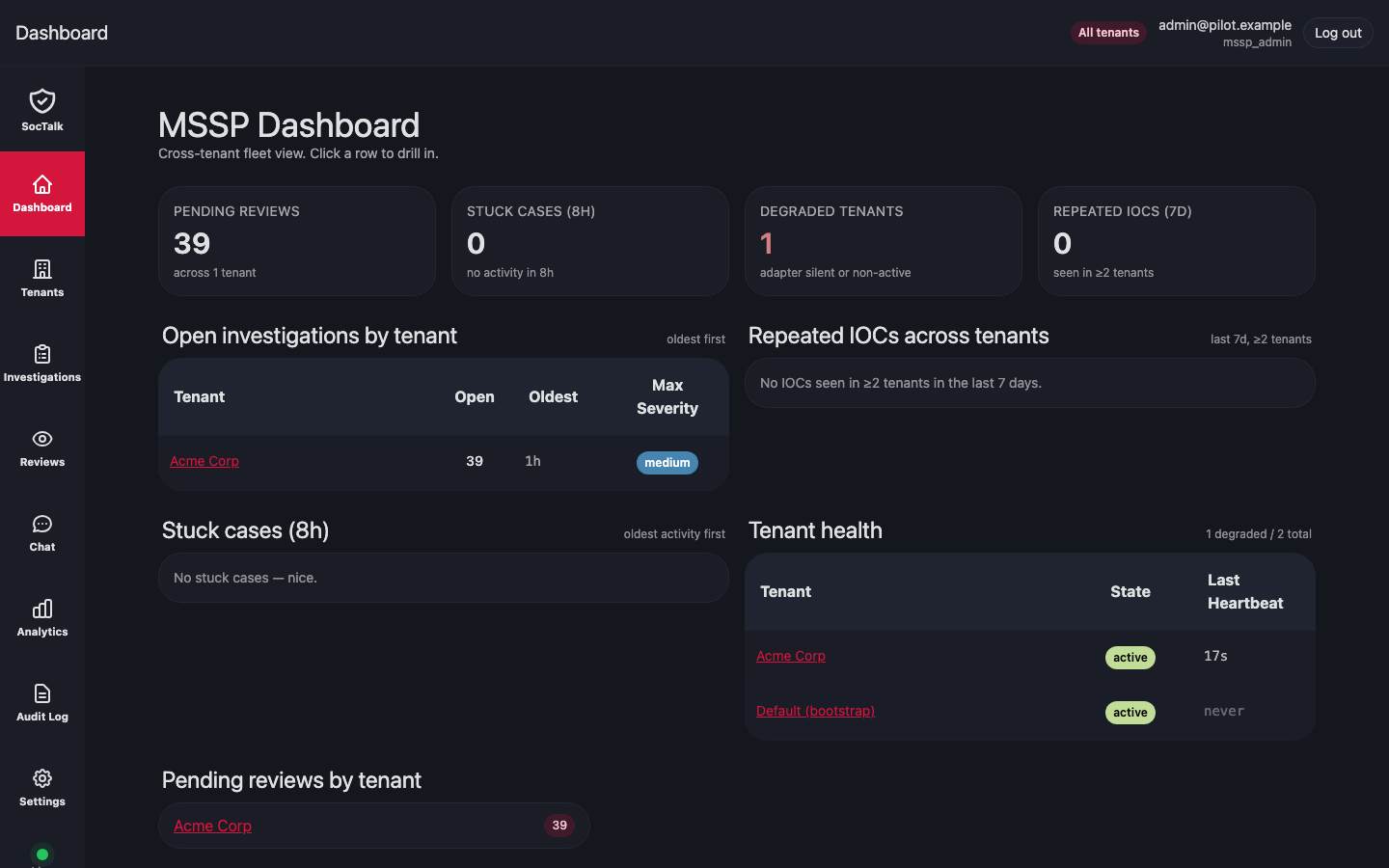
Sign back into the MSSP dashboard. Your tenant flips to Online within 1-2 minutes of §4.6 succeeding. This means the cloud-agent has reached the MSSP and registered: the trust handshake is done.
It does not yet mean the tenant Wazuh stack is up or the chat tools will resolve queries against this tenant.
4.8b Tenant data plane fully ready (~5-7 more minutes)
After agent registration, the MSSP controller drives the tenant chart install on the tenant's cluster:
pocprofile: Wazuh + linux-ep simulator come up. Wall clock ~5-7 minutes.providedprofile: SocTalk adapter comes up immediately. Wazuh chat tool calls resolve as soon as the adapter reaches the External SIEM endpoints the MSSP supplied at §3.1 step 3. If they don't, check reachability per §3.4.
Watch from the tenant VM:
kubectl -n tenant-<slug> get pods -w
# poc profile: wait until wazuh-manager-0, wazuh-indexer-0, linux-ep-N all Ready
# provided profile: wait until soctalk-adapter is Ready
Only after §4.8b is the tenant ready for the demo in §5. If §4.8a fires but §4.8b never completes, see Pilot troubleshooting.
5. The demo moment
The stakeholder-facing moment. Reproduce these queries verbatim; the wording drives which tool the LLM picks.
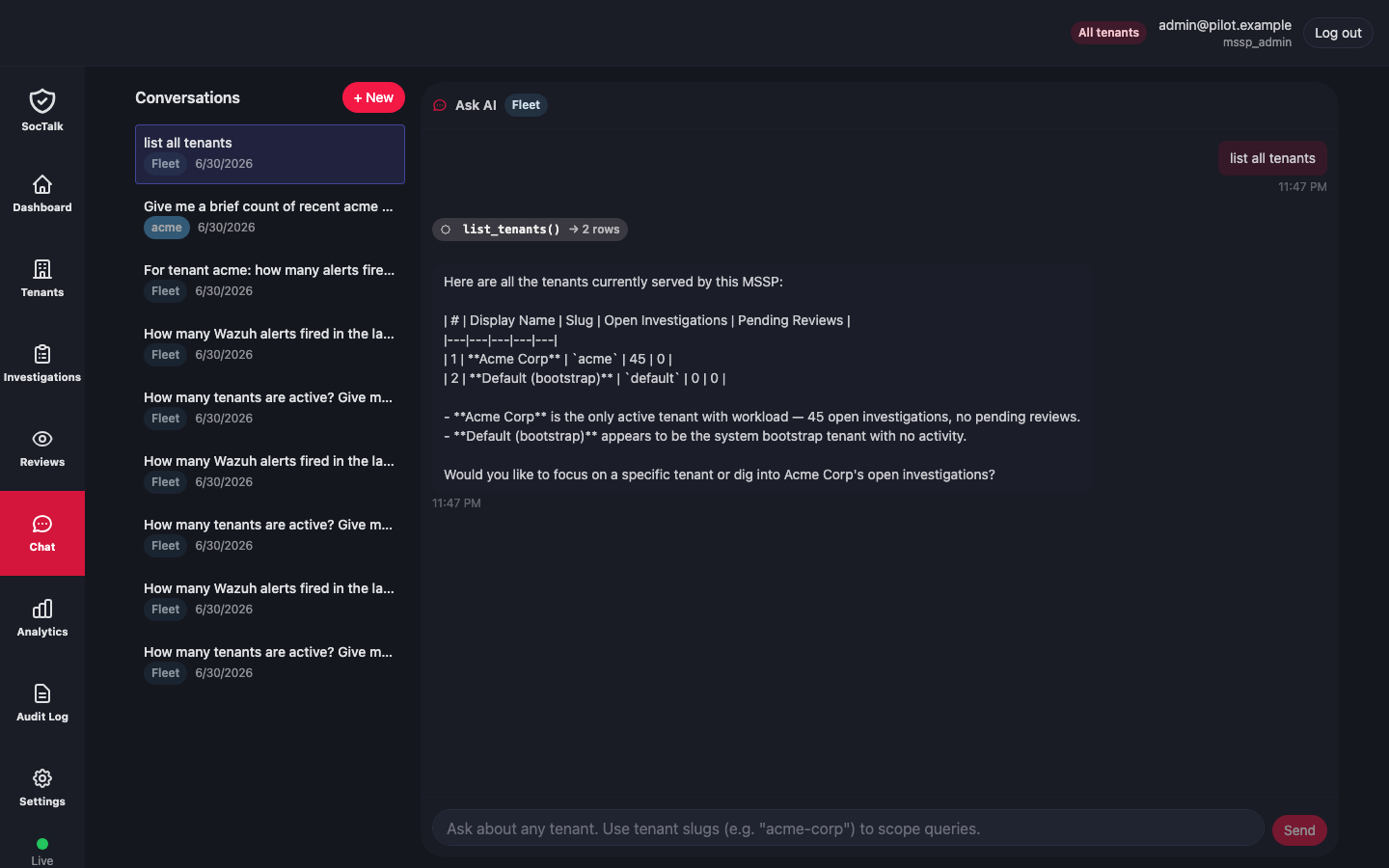
Sign in to the MSSP dashboard. Open the Chat tab.
Query 1. Confirm the tenant is reachable.
list all tenantsExpected: a list_tenants tool badge, then a reply listing your pilot tenants by slug + display name.
Query 2. Show alerts from one specific tenant.
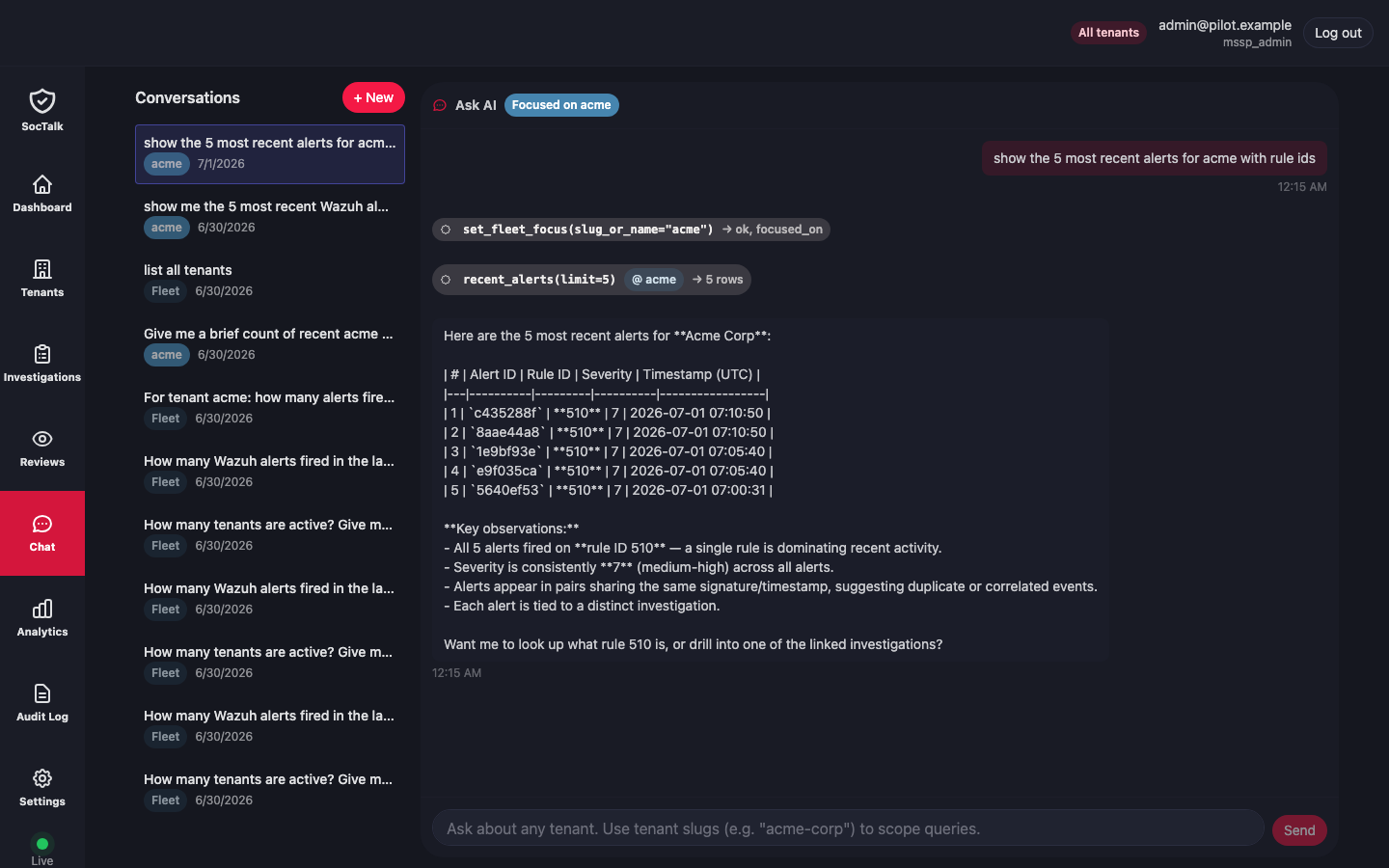
show me the 5 most recent alerts at <tenant-slug> with rule idsExpected: a recent_alerts tool badge with an @ <tenant-slug> chip, then a natural-language summary listing rule IDs, severities, and timestamps.
This is the stakeholder screenshot
The @ <tenant-slug> chip on the tool badge is the proof: SocTalk's AI SOC analyst is reaching into the tenant's forwarded Wazuh alerts and answering a question about real data. Capture this screen.
Why recent_alerts and not get_wazuh_alert_summary?
The pilot's poc profile ships Wazuh into the tenant cluster and the SocTalk adapter forwards alerts (subject to a minimum severity, configurable via SOCTALK_ADAPTER_MIN_SEVERITY) to the MSSP database. recent_alerts reads from that forwarded stream, so it works regardless of whether the MSSP can reach the tenant's Wazuh API directly. get_wazuh_alert_summary is the live-integration counterpart, useful for the provided profile when the MSSP holds the tenant's Wazuh URL + credentials in Integrations.
If the alerts list is empty (the tenant Wazuh hasn't seen any traffic yet), generate test alerts. The chart-installed Wazuh path (§4.7b) ships one or more linux-ep-N pods with the attack simulator; trigger it on the first ready replica via a label selector:
# On the tenant VM, against any linux-ep pod
kubectl -n tenant-<slug> exec -it \
  "$(kubectl -n tenant-<slug> get pod -l app=linux-ep -o jsonpath='{.items[0].metadata.name}')" \
  -- /opt/scripts/run-attack.sh
Wait 30-60 seconds and re-run the chat query. For the existing-Wazuh path (§4.7a), trigger alerts however you normally would on your own Wazuh, e.g. SSH a few bad passwords on a monitored host.
6. Day 2: where to from here
- Add real customer Wazuh. Onboard more tenants by repeating §3 and §4. Same pattern; each new tenant needs a fresh Tailscale tag, ACL entry, ephemeral auth key, and agent issuance.
- Plan the production install. When you're ready to move past the pilot, see Install for the K3s + Cilium + cert-manager + real-ingress path.
- Tenant lifecycle ops. Tenant lifecycle covers suspending, resuming, and decommissioning tenants from the MSSP dashboard.
- Upgrades. Upgrades covers rolling soctalk-system and the cloud-agent forward.
- Backups. Backup & restore for stateful data.
What's NOT in the pilot
- High availability (single k3s node on each side)
- Real TLS (the tailnet hostname uses self-signed certs; production needs cert-manager + real ingress)
- Multi-region
- Per-tenant scale past ~50 Wazuh agents per tenant
- Per-tenant ingress (this pilot uses the tailnet hostname for everything)
When you migrate to production, your MSSP product configuration (tenants list, chat history, LLM key) can carry forward with planning. Talk to the team before you decommission this pilot.
7. Pilot troubleshooting
Symptom-driven table for failures specific to the pilot topology. Generic SocTalk issues are covered in Troubleshooting.
| Symptom | Likely cause | Check |
|---|---|---|
| Tenant stuck "Pending" in MSSP dashboard | Bootstrap token expired before §4.6 ran | Re-issue from MSSP dashboard (§3.2); tokens default to 24h |
tailscale ping soctalk-mssp.<tailnet>.ts.net fails from tenant | ACL too tight, or MSSP machine offline | Check ACL preview in Tailscale admin UI; check MSSP tailscale status |
Agent logs show connection refused to controlPlaneUrl | MSSP-side helm upgrade from §2.4 didn't take | On MSSP VM: kubectl -n soctalk-system get ingress; confirm hostname matches |
Agent logs show 403 Forbidden from MSSP | Bootstrap token already used (one-shot) | Re-issue from §3.2 |
kubectl -n soctalk-agent get pods shows ImagePullBackOff | Tenant cluster can't pull from ghcr.io (corporate proxy) | Configure k3s registries.yaml with proxy; or pre-pull on the tenant VM |
| Chat says "no Wazuh alerts" but tenant has alerts | Existing-Wazuh case: Manager API not reachable from MSSP tailnet | From MSSP VM: curl -k -u <user>:<pw> "https://<wazuh-mgr>:55000/security/user/authenticate?raw=true" (GET; should return a JWT) |
get_wazuh_alert_summary tool returns error | Existing-Wazuh case: Indexer credentials wrong | From tenant VM: curl -ku <user>:<pw> https://<wazuh-indexer>:9200/wazuh-alerts-*/_search?size=1 |
| Adapter heartbeat works but agent never reaches "Online" | NetworkPolicies left enabled in §4.5 | kubectl -n soctalk-agent get networkpolicies; should be empty |
helm install rejected with values-schema error | Chart version skew between control plane and agent chart | Use the chart version printed by the issue-agent endpoint, not "latest" |
8. Decommissioning the pilot
When the pilot ends:
- Tenant side, each tenant:
helm uninstall soctalk-agent-<slug> -n soctalk-agent. Power off and archive (or destroy) the tenant VM. - Tailscale admin UI: revoke each tenant's auth key under Settings → Keys; remove each tenant tag from Access Controls.
- MSSP dashboard: for each tenant, Decommission from the tenant detail page (state transitions to
decommissioning→archived). - MSSP VM: archive or destroy if not migrating to production. If migrating, see Install for the production-cluster path.
Keep these artifacts for post-pilot review:
- The audit log from each tenant detail page (downloadable)
- Your filled
values.yamlfrom §2.4 - The Tailscale ACL stanza from §1.2
- Screenshots from §5