
Managing users: a walkthrough
This walks through provisioning a login and running its whole lifecycle from the UI, on both sides of the business: MSSP staff from the Staff Users panel, and a customer's own people from the tenant Users panel. The two panels mirror each other, so once you have done one the other is familiar. For the model behind all of this, which roles exist and what each can do, see Users and roles; this page is the click-through.
Everything here is done by an admin. On the MSSP side that is an mssp_admin or platform_admin. On the tenant side it is that customer's own tenant_admin, acting only within their organization. Neither can reach across the audience wall: an MSSP admin never assigns a tenant role, and a tenant admin never assigns an MSSP one.
Provisioning MSSP staff
Sign in as an MSSP admin. The panel you want is Staff Users in the sidebar, which only appears for an account that holds user management.
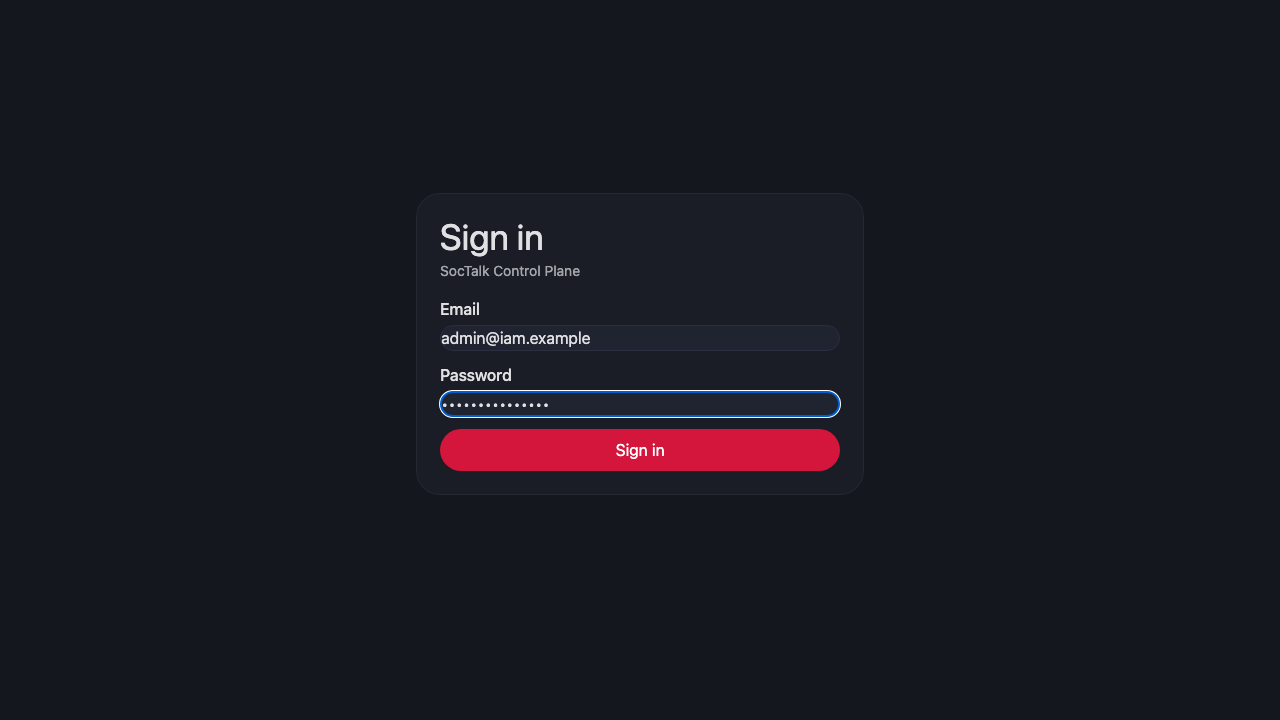
Open Staff Users and choose + Add user. Enter the person's email, an optional display name, and pick the role that matches the job. An analyst works the queue across customers, a manager authorizes risk, and an admin configures the system and manages users. The role list here holds only MSSP roles; a tenant role is not offered, because it could not be assigned from this side.
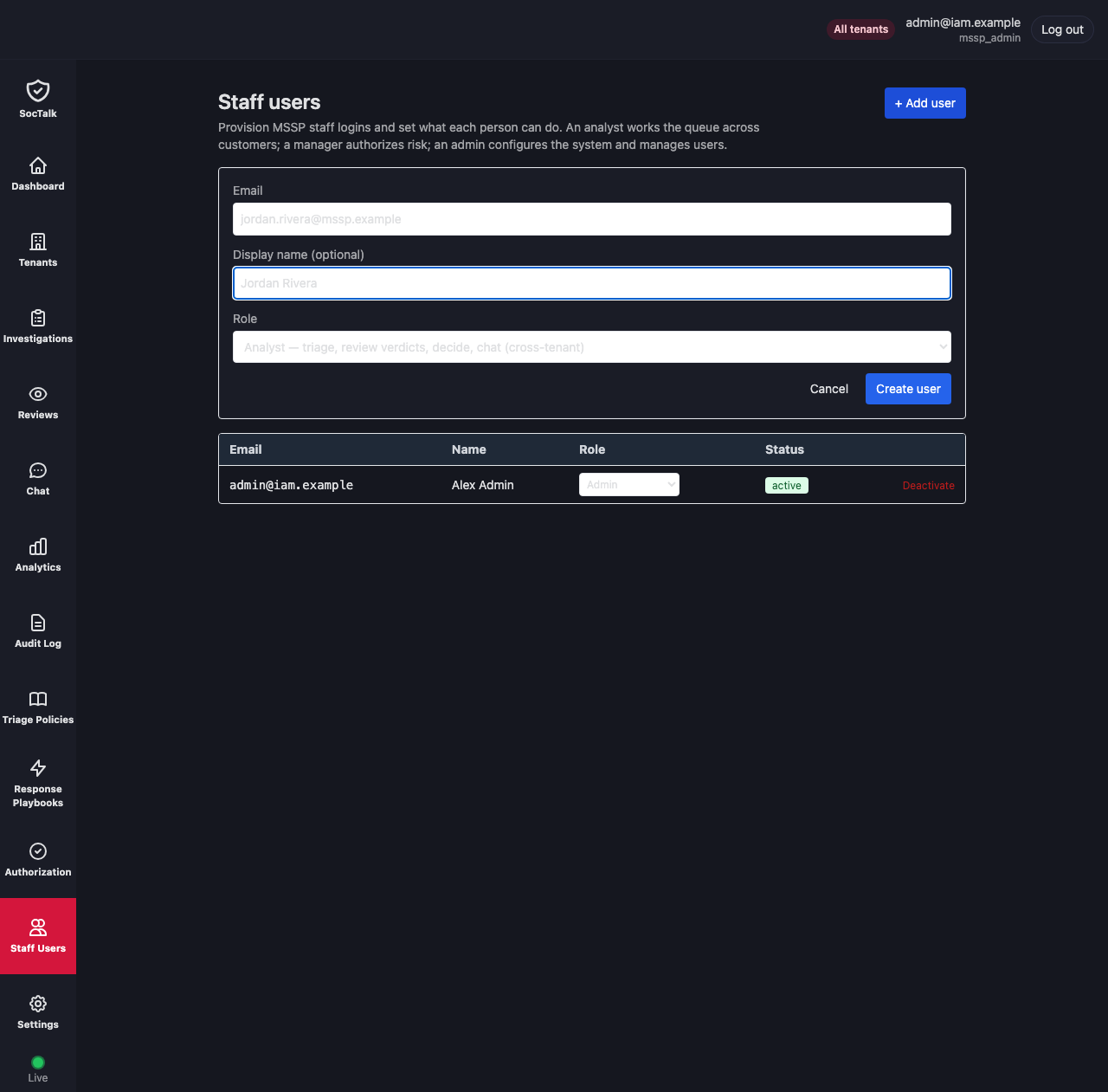
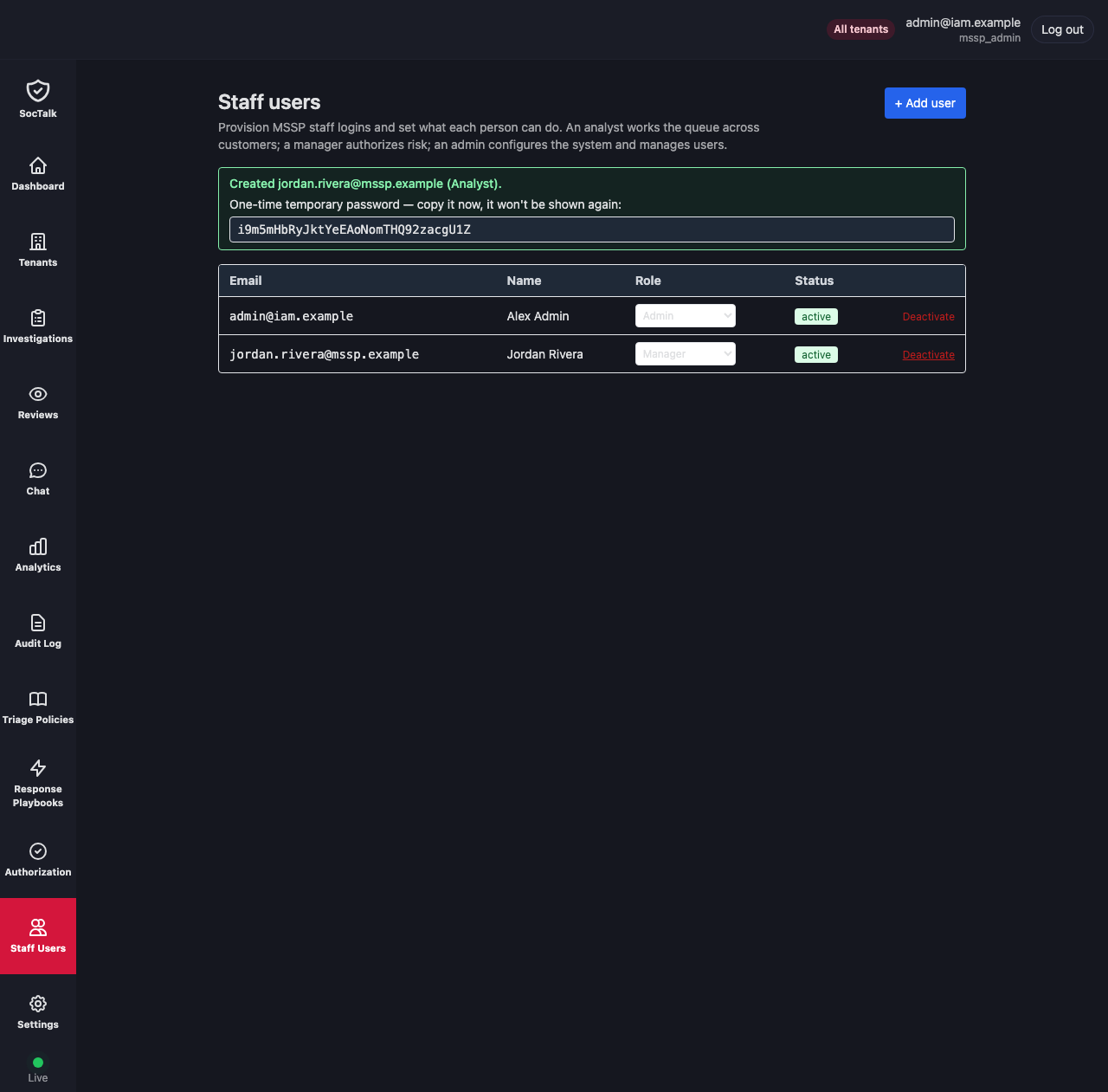
Submitting creates the login and returns a one-time temporary password. Copy it now and hand it to the person out of band, because it is shown once and is never retrievable in plaintext afterwards. They are asked to change it on first sign-in. The new user appears in the roster below the form, active, with the role you gave them.
Changing a role
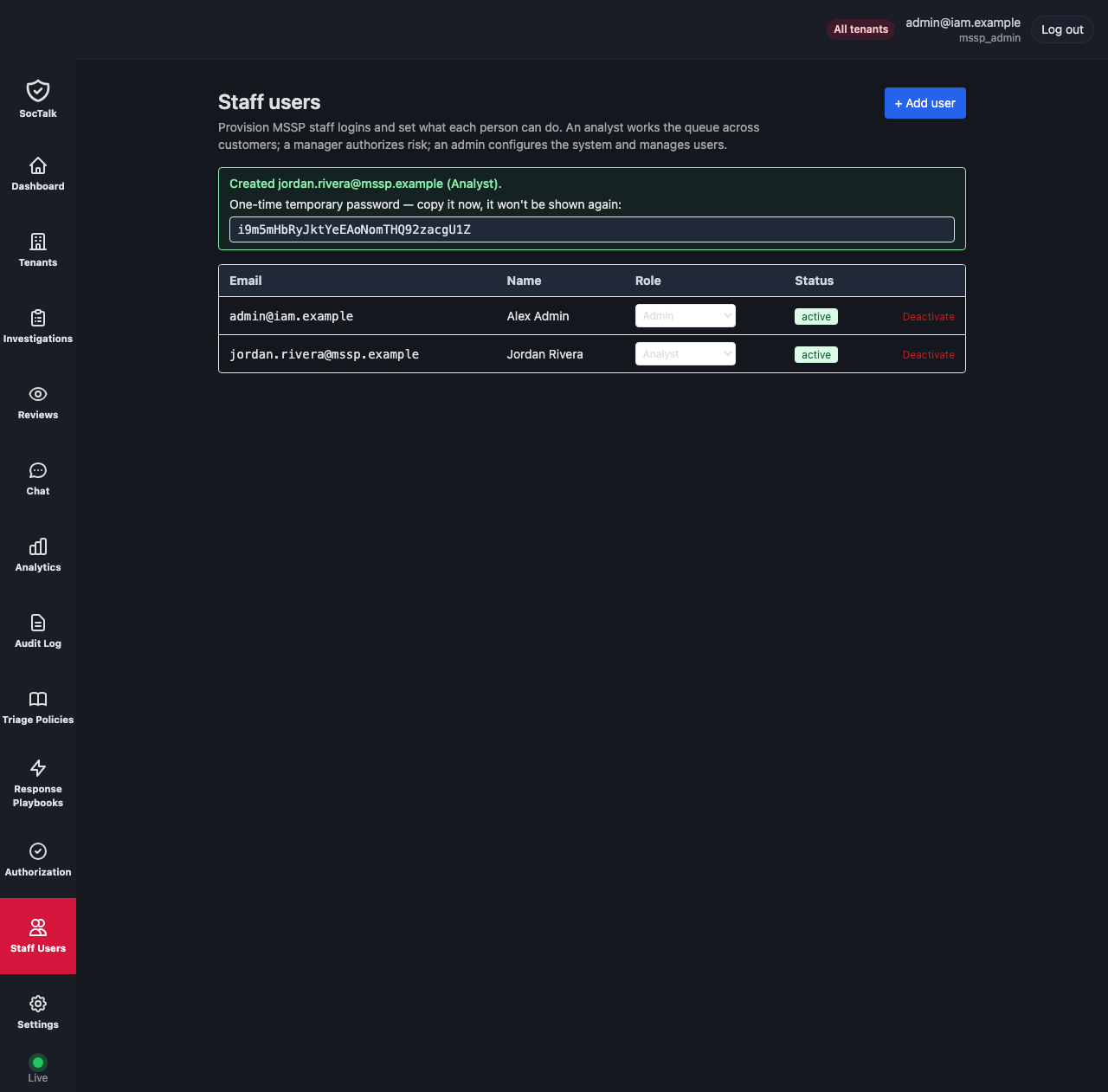
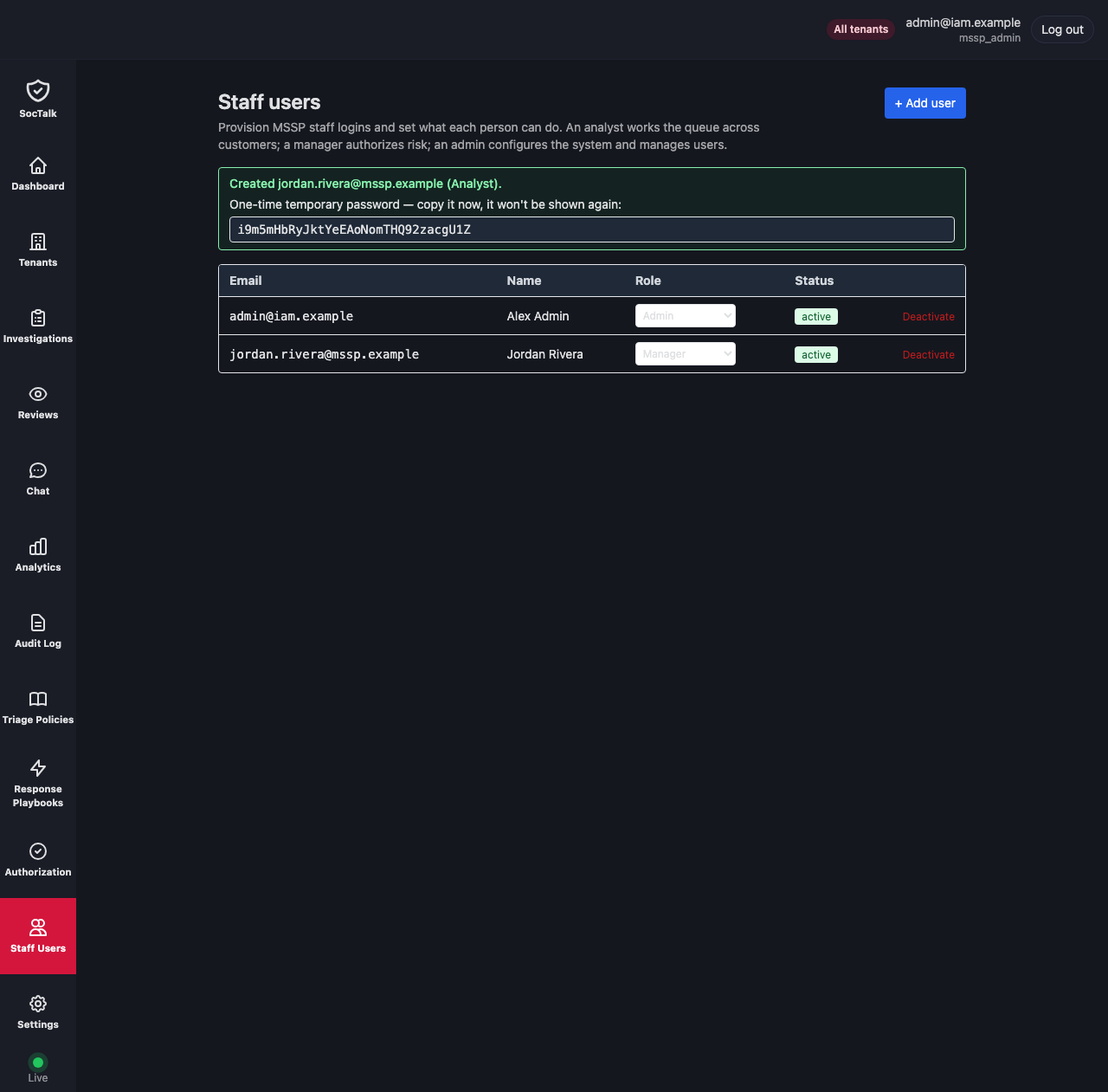
Roles change in place. Pick a new role from the selector on the person's row and it is saved immediately. Here the analyst is promoted to manager.
A role change revokes that user's live sessions, so the new authority takes effect at once rather than waiting for the old session to expire. If they were signed in, their next request sends them back through the login.
Deactivating and reactivating
Deactivate on the row turns the account off. The status flips and every live session is revoked in the same moment, so someone who is already signed in is cut off rather than lingering until their session ages out. The session layer also refuses an inactive account on every request, which closes the gap against a sign-in that was in flight when you deactivated.
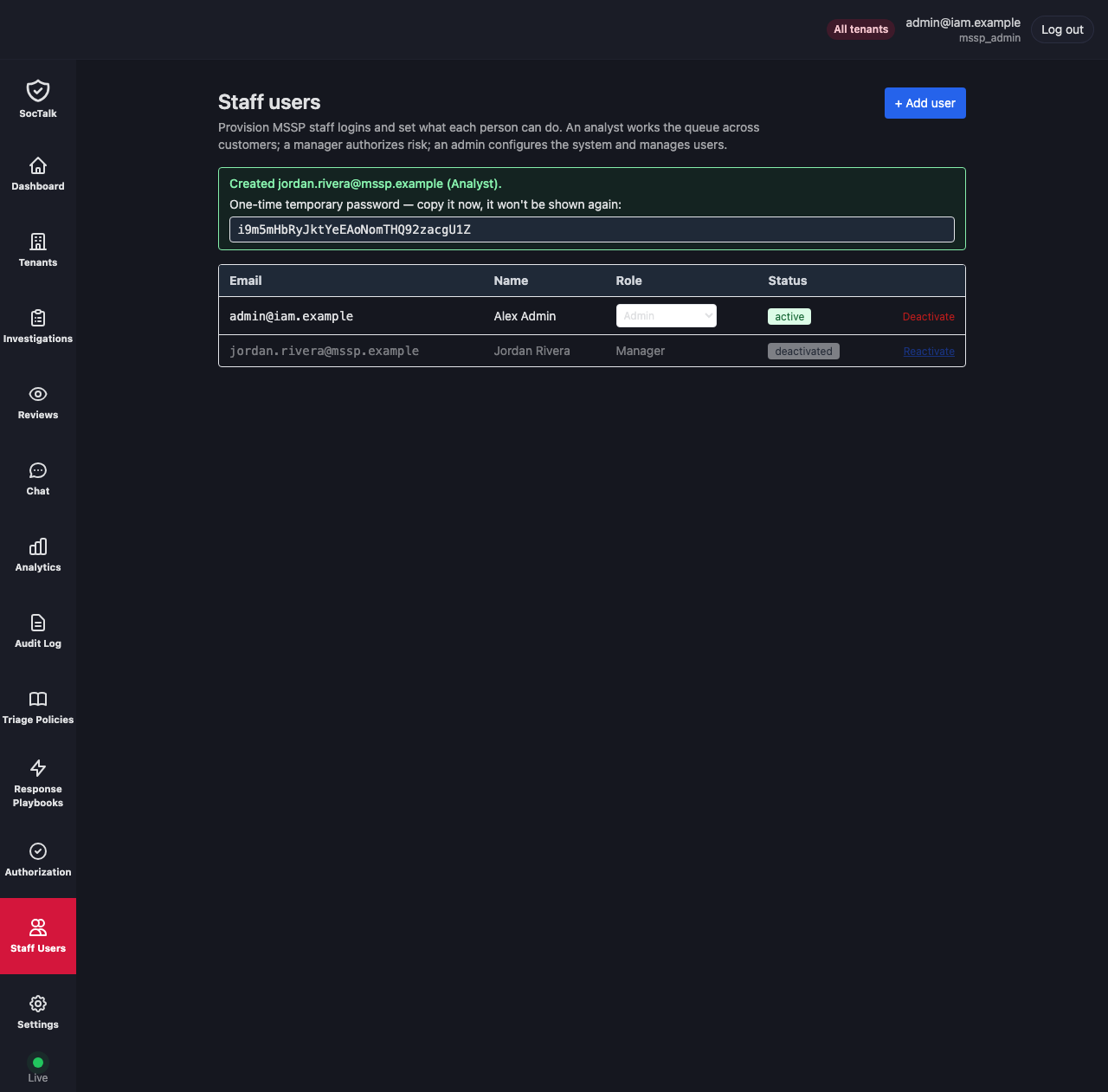
Deactivation is reversible. Reactivate on the same row sets the account active again. It comes back with the role it had; nothing about its history is lost.
The tenant side, end to end
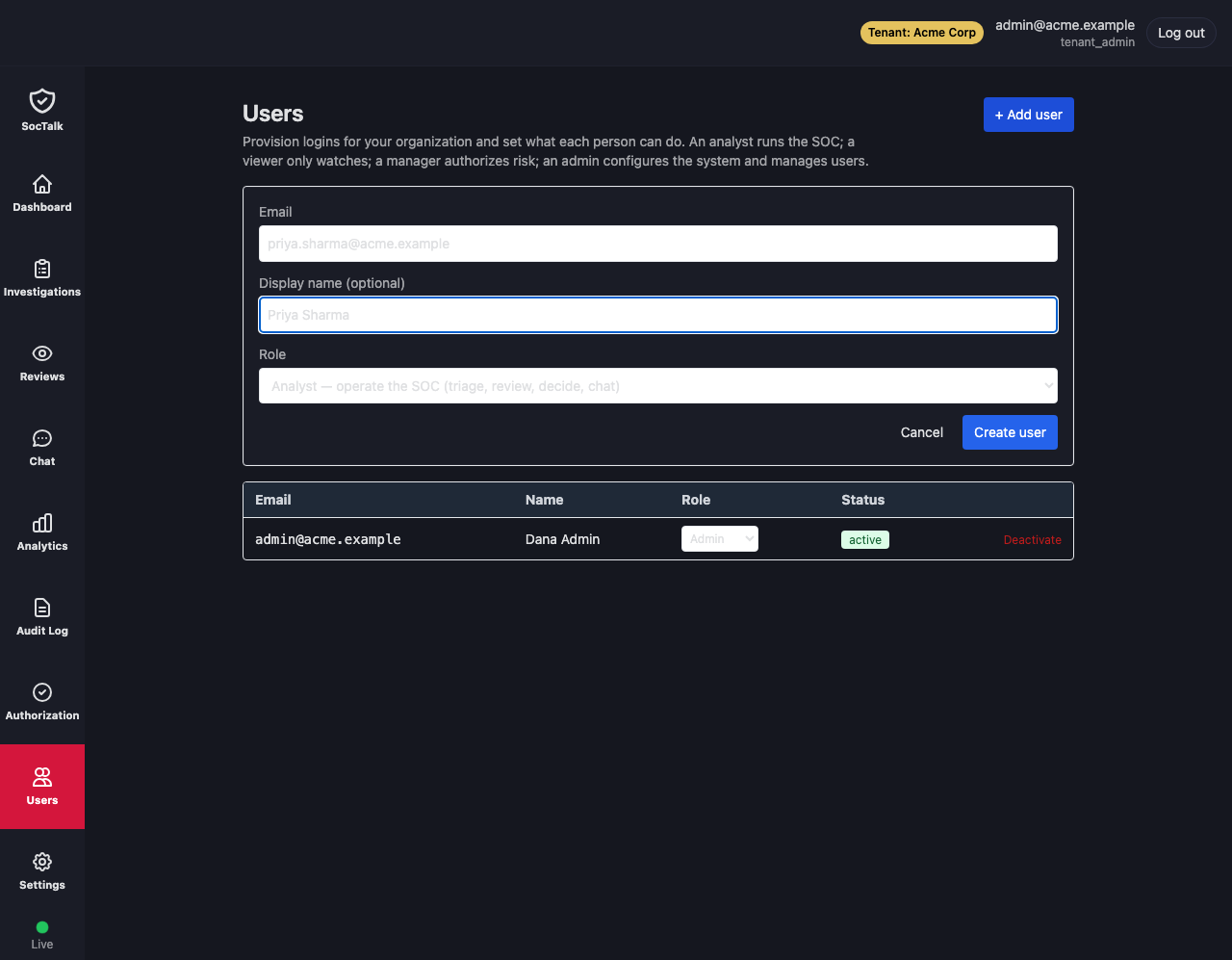
A tenant_admin runs the same lifecycle for their own organization, from the Users panel. This is what makes the tenant roles usable at all; without it a customer would have only the single admin created when the tenant was onboarded. The top-right shows the tenant you are acting in, and every user you create lands in that tenant. The tenant is taken from your session, never from the form, and the database enforces it, so a tenant admin can only ever create users in their own organization.
Choose + Add user, enter an email and optional name, and pick a role. The choices are the tenant roles: a viewer who only watches, an analyst who runs the SOC, a manager who authorizes risk, and an admin. Here a new analyst is provisioned for Acme Corp.
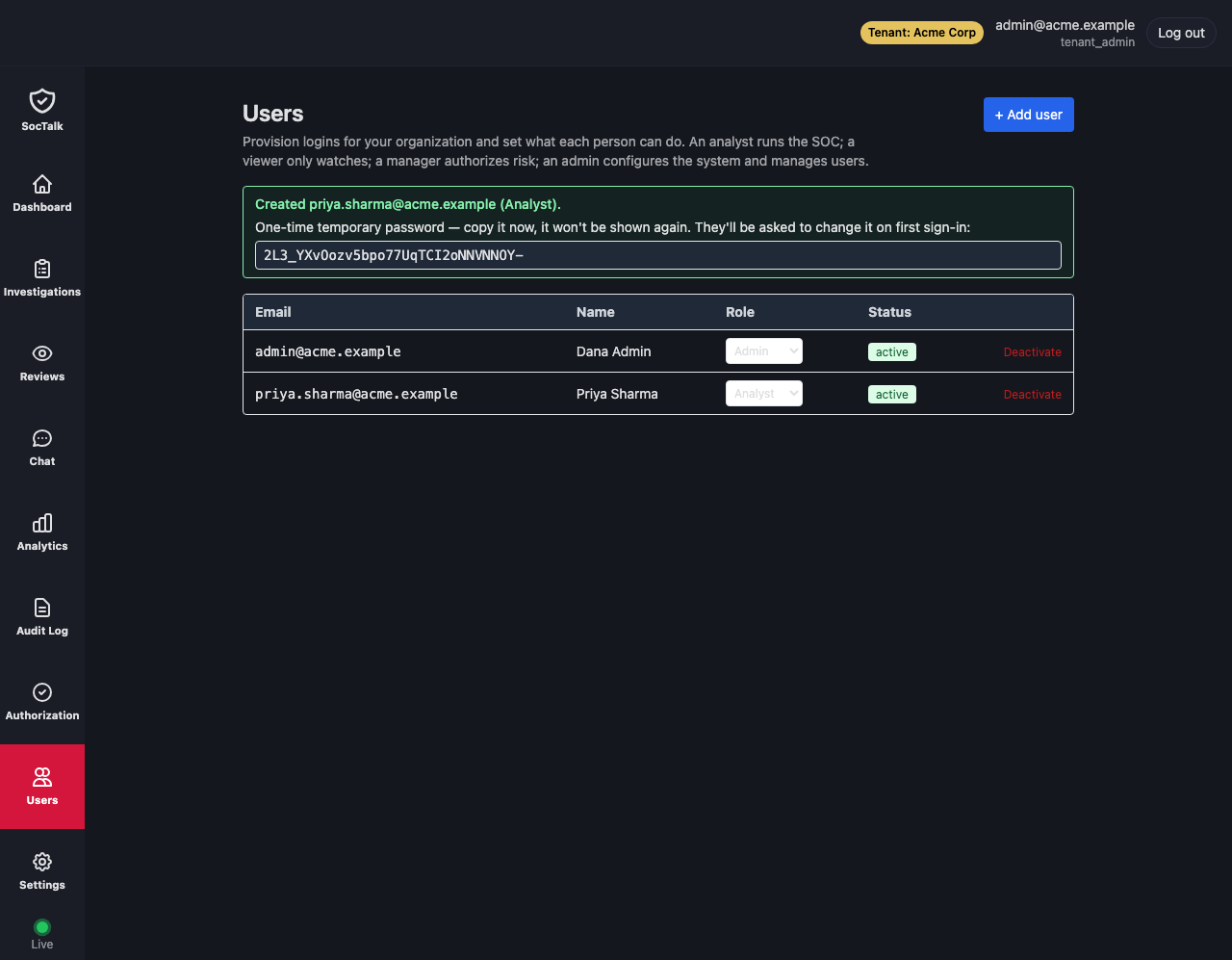
As on the MSSP side, creating the user returns a one-time temporary password to hand over out of band, and the new analyst joins the roster.
Role changes work the same way. Promote the analyst to manager from the row selector, and the change is saved and their sessions revoked immediately.
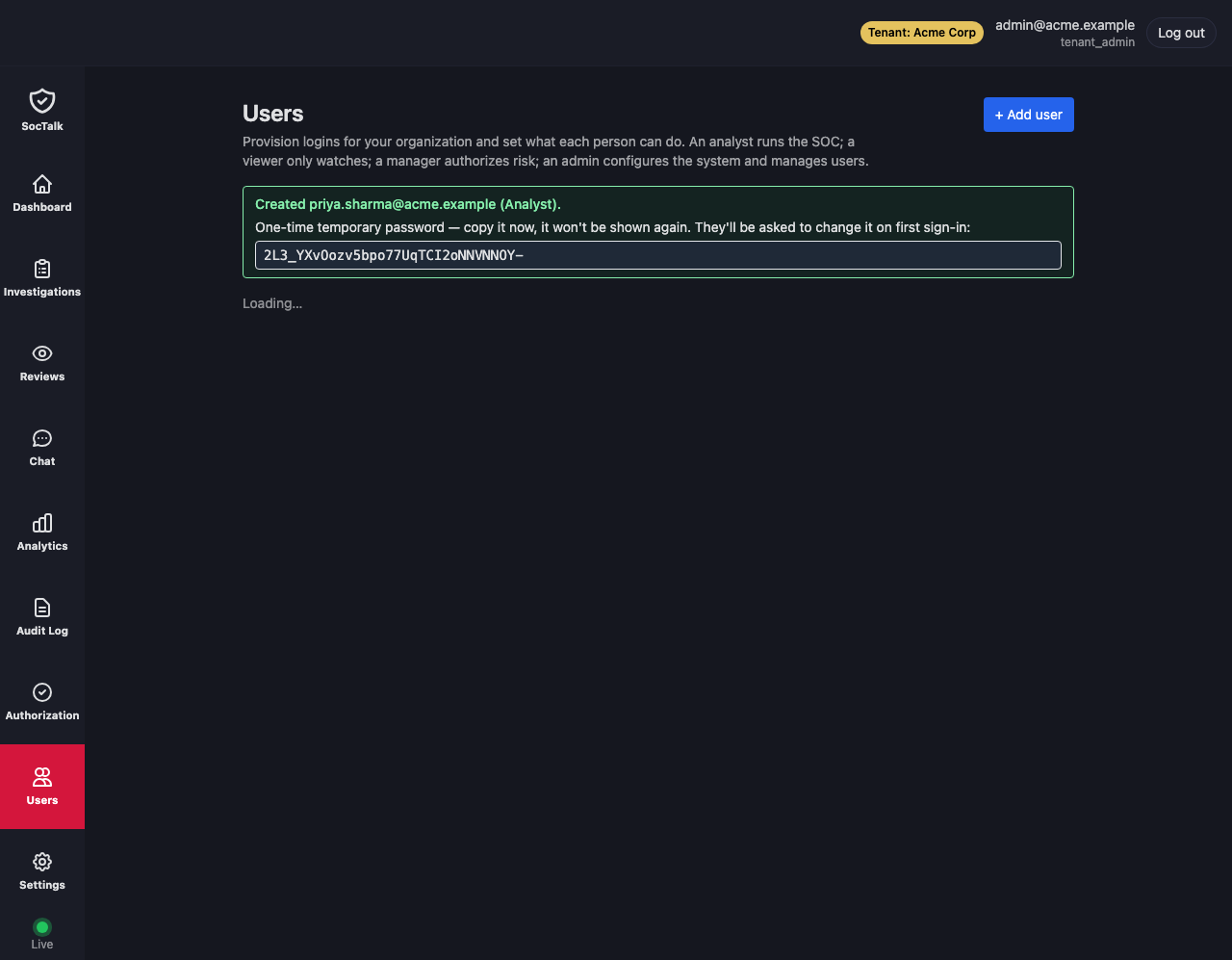
Deactivate turns the account off and revokes its sessions,
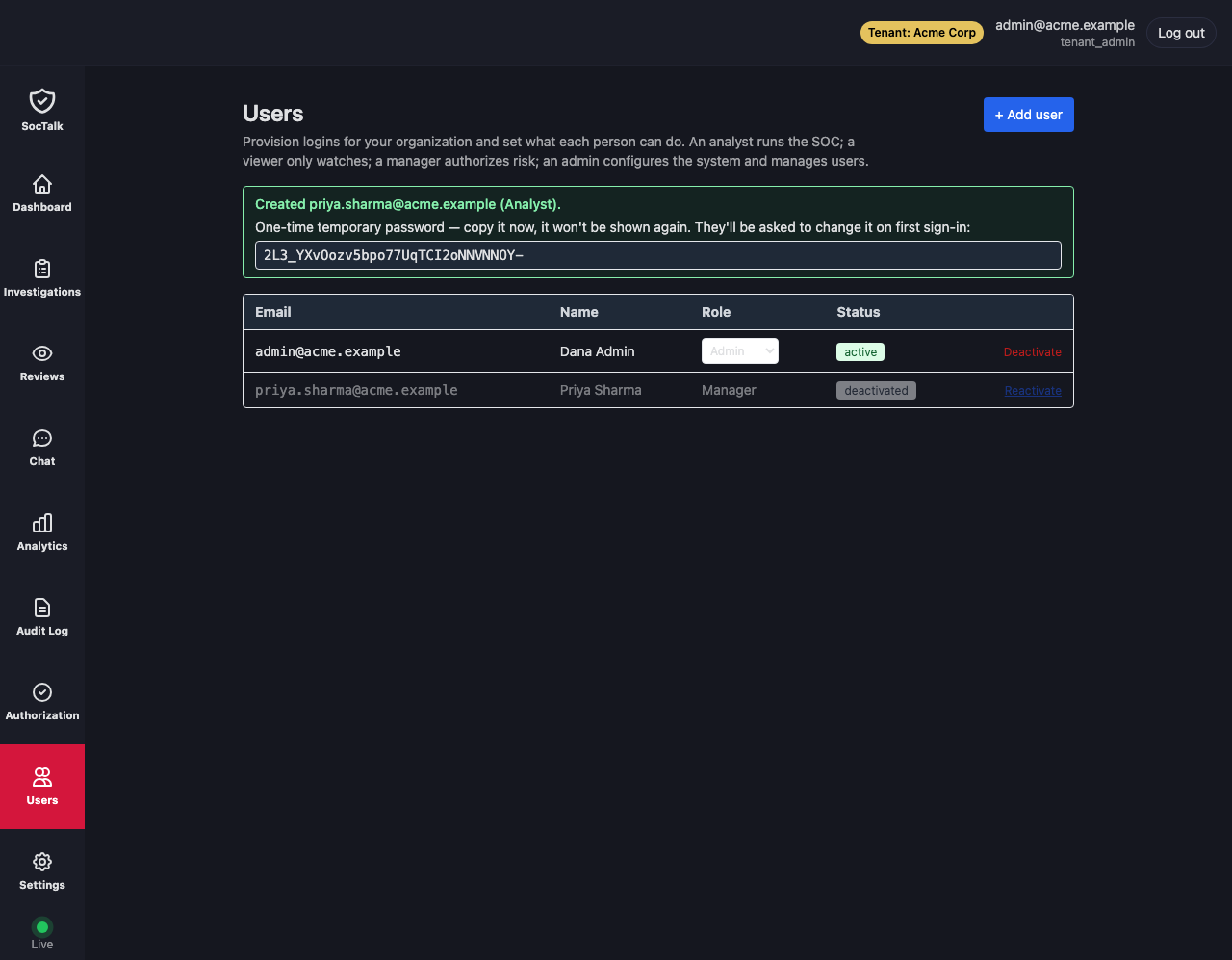
and Reactivate brings it back.
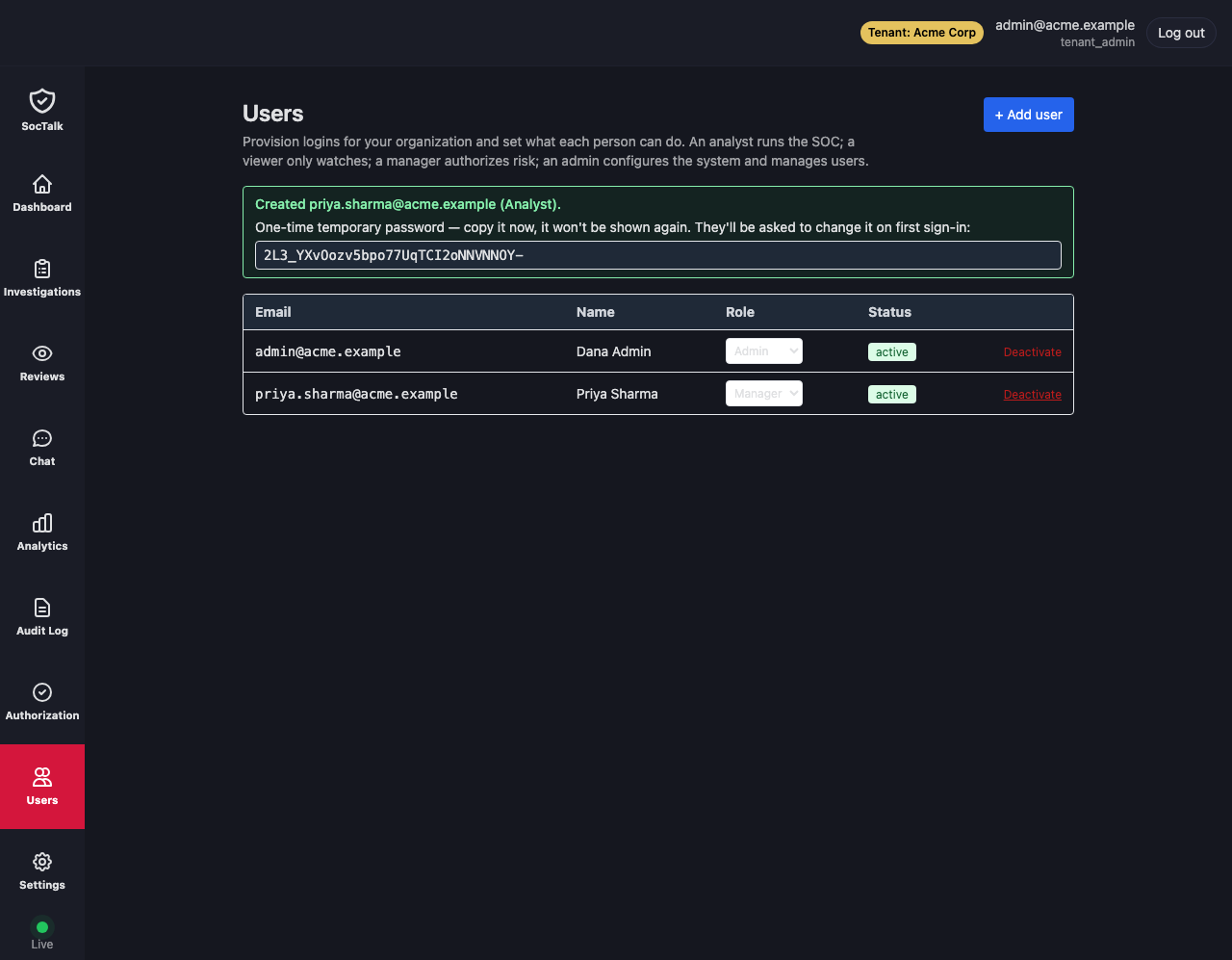
The guards that always apply
A few rules hold on every change, on both sides, and the UI enforces them rather than trusting you to remember:
- You cannot modify your own account. There is no self-demotion and no self-lockout.
- You cannot remove the last active administrator. A change that would leave a tenant with no active
tenant_admin, or the install with no activemssp_adminorplatform_admin, is refused. The check locks the candidate rows, so two admins demoting each other at the same moment cannot both slip through. - An existing
platform_admincan only be changed, deactivated, or have its password reset by anotherplatform_admin.
Resetting a password
There is no self-service forgot-password flow in this release. When someone is locked out, an admin resets them. On the MSSP side an mssp_admin or platform_admin resets any user, MSSP or tenant, and the reset returns a fresh one-time password and revokes that user's existing sessions. The exact endpoint and the CLI fallback for bootstrap and offline cases are in Users and roles.
Doing it from the API
Every action above has an API equivalent under /api/mssp/users and /api/tenant/users, including create, list, role change, deactivate, and reactivate. The request shapes, the capability each requires, and the audience and tenant-scoping rules are documented in Users and roles. The UI is a thin layer over those endpoints, so anything you can click you can automate.